Bob Go brings courier services into your Shopstar Go store. Customers can choose a delivery price at checkout. After an order is paid, you pack it, book a courier from the order, and print its shipping label. This guide takes you through your first setup.
New to both services?
Shopstar Go is where you sell products and manage orders. Bob Go is your separate courier account, where you manage courier services and pay for deliveries. Connecting them lets you do the booking from Shopstar Go.
Before you start
- A Shopstar Go store selling physical products in South African rand (ZAR)
- Deliveries to addresses in South Africa
- A Bob Go account with access to the connection and checkout features you need
- Your public store URL, such as https://yourstore.co.za
- A collection address, contact person, phone number, and email
- A scale and tape measure for your packed parcels
Your store URL is the web address customers visit to shop. If you are new to Shopstar Go, first add a physical product under Products and set up payments under Store → Payments. Bob Go does not collect customer payments for your products.
1. Create a key for your store in Bob Go
Use a key made for this store. An API key is a private code that allows Shopstar Go to use your Bob Go account. A sales channel is the entry for your store in Bob Go. Keep the key private; you only need to paste it into the connection form.
- 1
Sign in to Bob Go
Create an account if you do not have one, and complete your business details. Check the current plan terms and add funds before booking real deliveries.
- 2
Add your store
Open Sales channels → Add channel. Choose Bob Go API. This is the option used for Shopstar Go, even if you cannot see a Shopstar option in the list.
- 3
Enter your Store URL
Use your public shop address, including https://. Do not enter a Shopstar dashboard link, an order link, or a localhost address.
- 4
Copy the key and Store identifier
After creating the channel, copy its API key and the exact Store identifier shown in its details. The identifier can look different from the clickable Store URL. Copy it as shown rather than typing it from memory.
2. Connect it in Shopstar Go
- 1
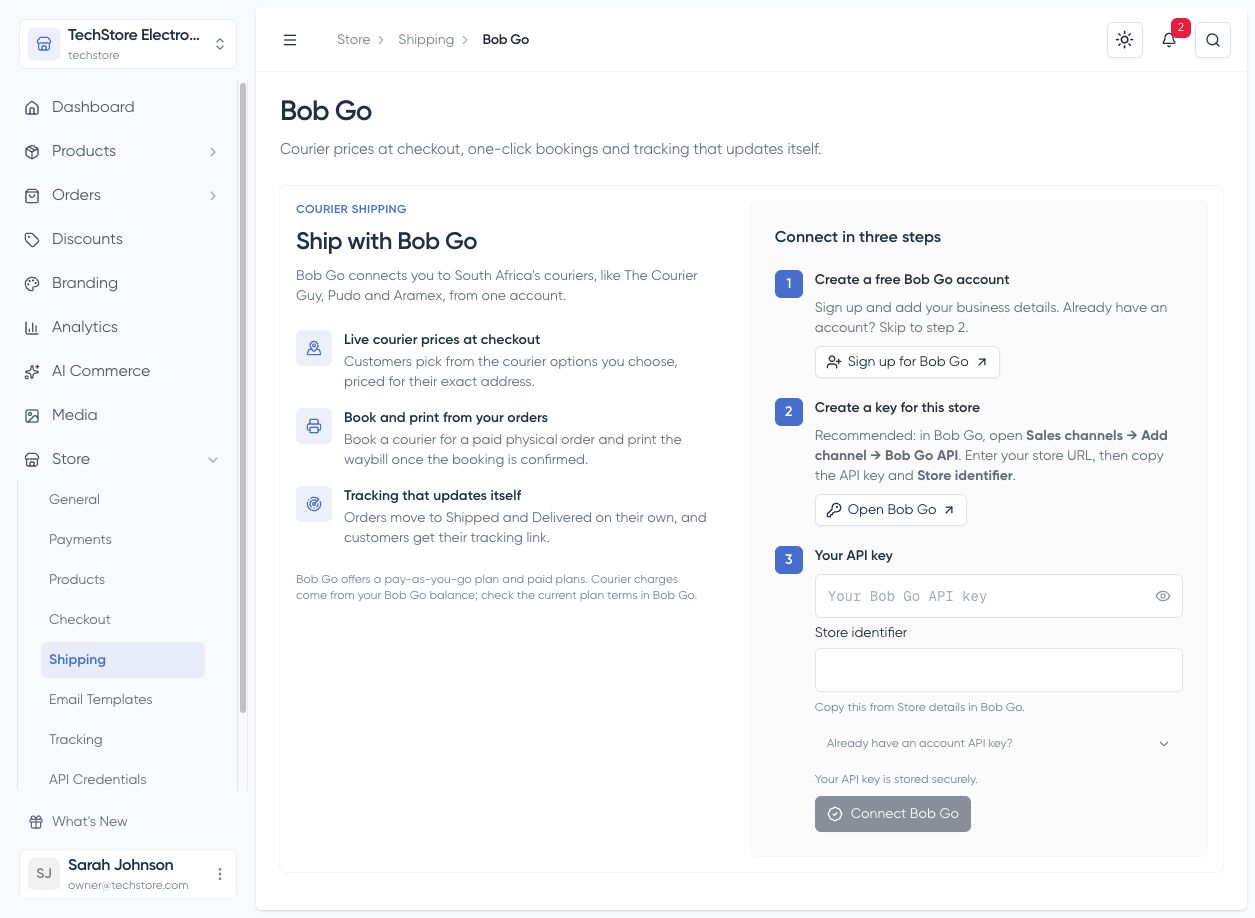
Open Bob Go shipping
Sign in to your Shopstar Go dashboard. In the sidebar, open Store → Shipping, then choose Bob Go.
- 2
Paste both details
Paste the key into Your API key and the copied identifier into Store identifier. Click Connect Bob Go.
- 3
Check the confirmation
You should see Connected to Bob Go. Continue below to add your collection address and delivery options.
Frequently asked questions
Already using an account API key?
If you already have a key from Bob Go → Settings → API keys, open Already have an account API key? in the connection form. Paste that key and connect; you do not need a Store identifier for this option. It supports the same shipping features. For a new setup, use the recommended store-key steps above.
3. Tell couriers where to collect
- 1
Complete Collection address
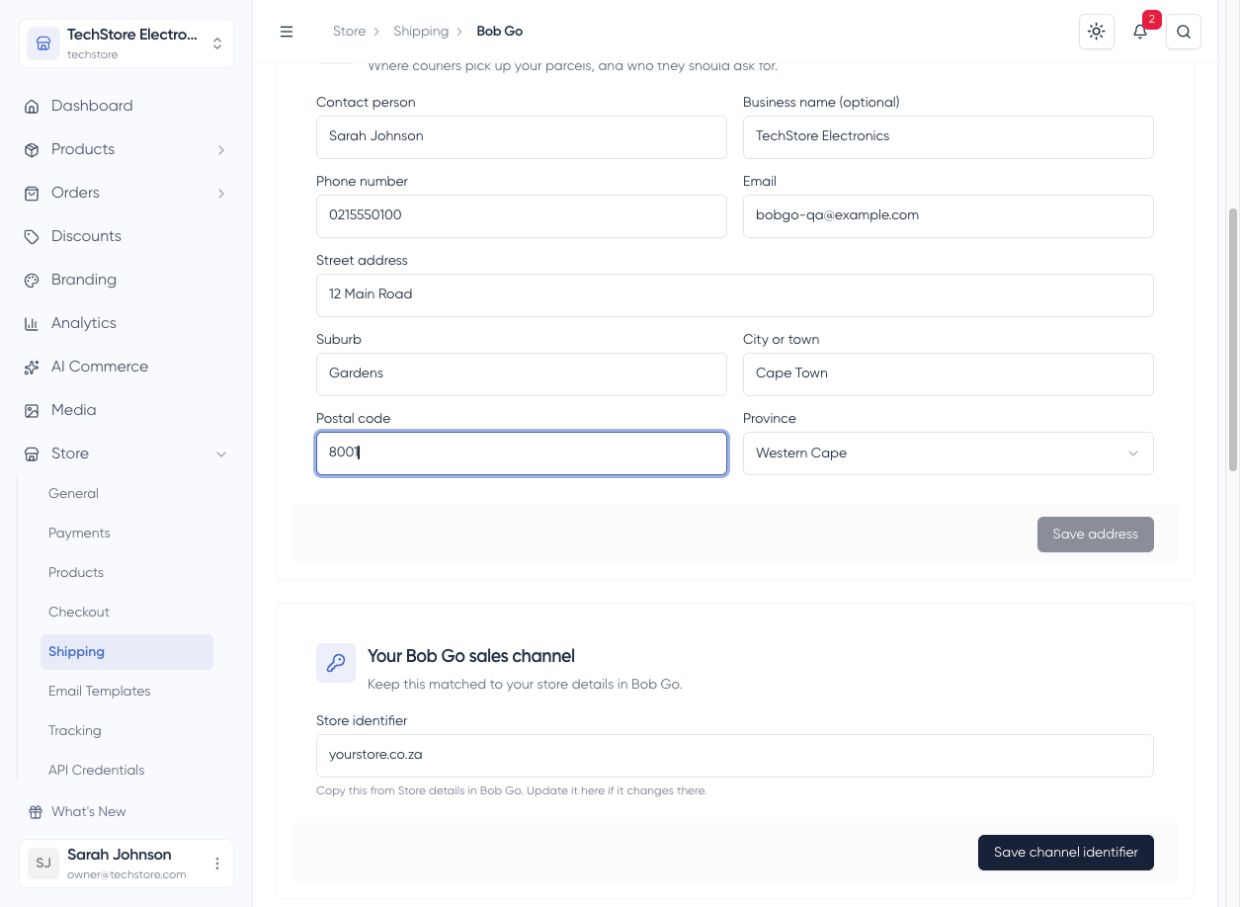
Enter the place where parcels will be ready for the courier. Add the street address, suburb, city, postal code, and province. This is your pickup address, not your customer’s delivery address.
- 2
Add a reachable contact
Use the name, phone number, and email of someone who can help the courier collect. Check each detail, then click Save address.
4. Set up delivery choices and packing time
- 1
Choose your courier services in Bob Go
Use Choose your options in Bob Go to open Rates at checkout. Configure the delivery services you want customers to see.
- 2
Keep your own rates as a backup
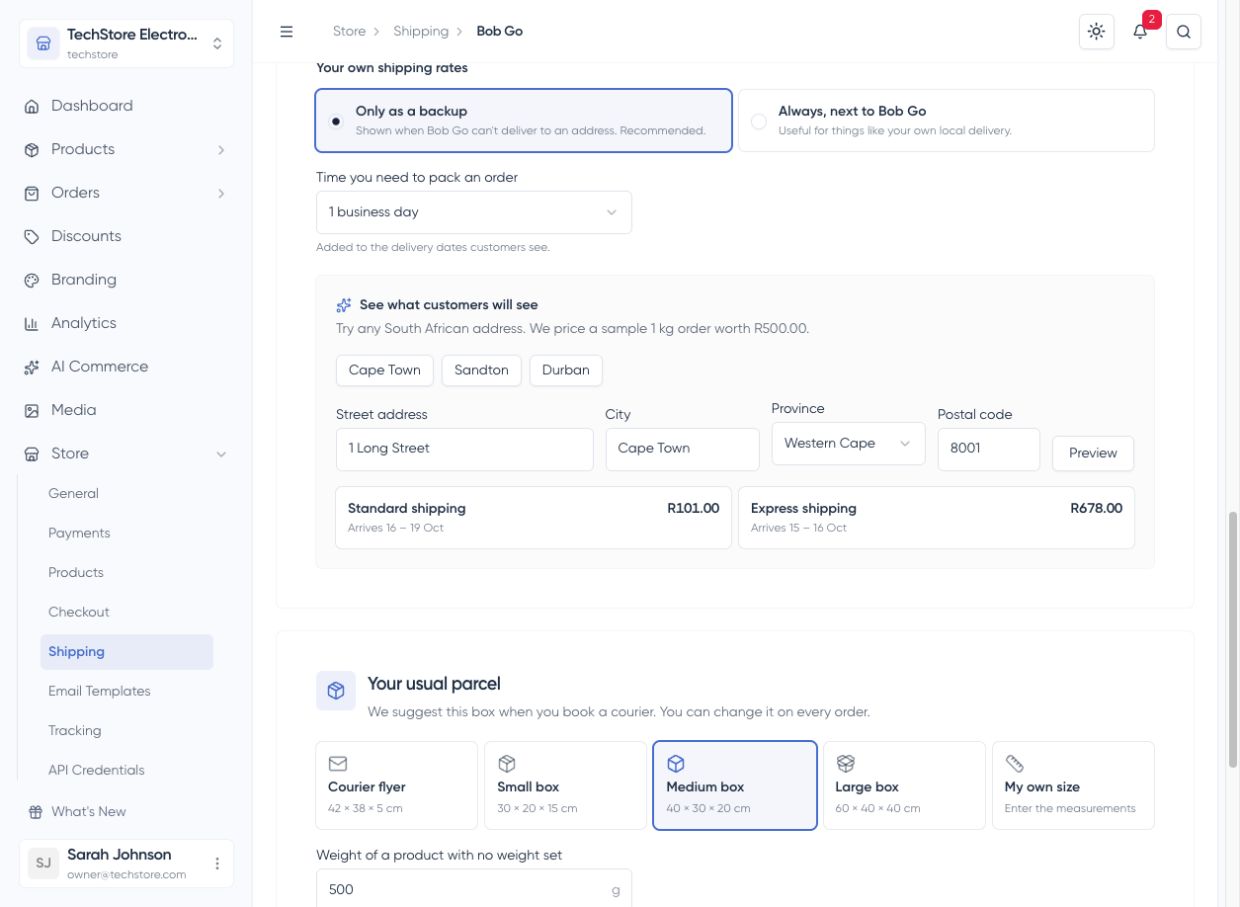
In Shopstar Go, choose Only as a backup under Your own shipping rates. Add suitable delivery-zone rates in Store → Shipping so you have an option when Bob Go cannot return a price. A backup price does not book a courier for you.
- 3
Allow time to pack
Set Time you need to pack an order to the number of business days you usually need. This time is added to the delivery dates shown to customers.
- 4
Preview the prices
Under See what customers will see, enter a South African delivery address and click Preview. This uses a sample 1 kg order worth R500. Then test your real products in your store checkout before launching.
- 5
Show the options to customers
Once your collection address and rates are ready, switch on Show Bob Go delivery options at checkout. Customers enter their delivery address and choose an available option.
Offer your own local delivery too
If you deliver locally yourself, choose Always, next to Bob Go to show your own delivery-zone options alongside the courier choices. Most new stores can start with Only as a backup.
5. Prepare your product and parcel details
- 1
Add product measurements
Open each physical product under Products. Add its real weight and dimensions, including relevant variant weights. These help produce useful checkout prices.
- 2
Choose Your usual parcel
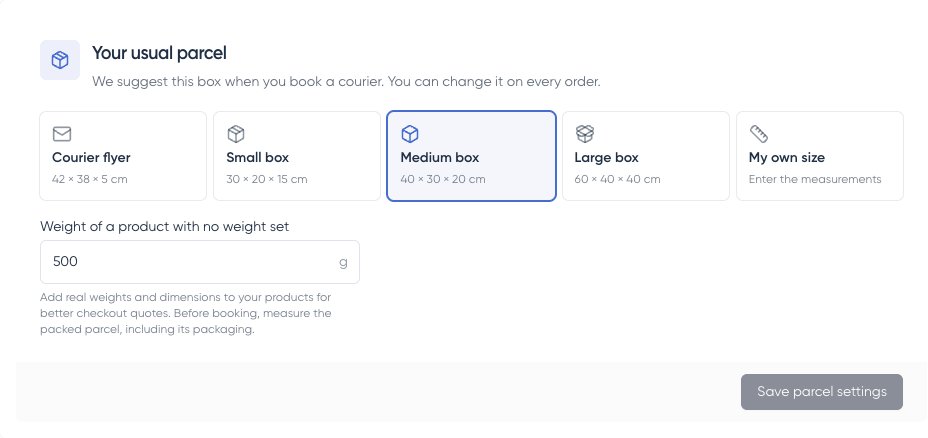
Back in Bob Go settings, choose the package you use most often, or enter your own size. Save parcel settings. This is a starting suggestion for bookings; you can change it on each order.
- 3
Weigh the packed box each time
Include the product, box, and filling. Couriers may charge for the space a parcel takes up as well as its scale weight, so measure its outside length, width, and height too.
Your usual parcel and checkout packaging
Your usual parcel in Shopstar Go suggests a package when you book. Review your preferred checkout package separately in Bob Go. The weight for products with no weight set is only a fallback; add real measurements to your products.
You are ready for your first order
Check that you have connected Bob Go, saved a collection address, added product measurements, and tested checkout. Keep your live Bob Go balance funded. When a physical order is paid, use the next tutorial to book its courier.
Next: pack, book, and track your first order
Frequently asked questions
What does Test mode mean?
You connected a sandbox key. It lets you practise without a real courier collection. The screenshots use sandbox examples. Connect a live Bob Go key when you are ready for real deliveries; live bookings charge your Bob Go account.
Why can’t I connect?
Check that your store sells in ZAR, the key is copied completely, and the Store identifier matches Bob Go exactly. If you changed the identifier in Bob Go, update it in Your Bob Go sales channel in Shopstar Go too. Ask support for help if the error remains, without sharing your key in a message.
Why are there no delivery prices?
Save a complete collection address, enable checkout delivery options, and review Rates at checkout in Bob Go. Check the customer’s South African address and your product measurements. Keep suitable delivery-zone backup rates for addresses where no courier price is available.
Does free shipping mean the courier is free?
No. Free shipping reduces what your customer pays. You still pay the courier charge through Bob Go. The customer’s checkout shipping price and your eventual courier cost can differ.
I used Bob Go with Shopstar Classic. Is this the same?
This tutorial is for Shopstar Go. Book each paid order inside Shopstar Go. Orders are not automatically copied to Bob Go’s Orders list. Follow these Go steps rather than a Classic order-sync tutorial.