Your first paid order is ready to go. You will work from its order page in Shopstar Go: check the address, pack the goods, compare courier prices, and print the label. Bob Go then supplies tracking updates as the parcel travels.
Not connected yet? Start with Bob Go setup
Before you book
- Bob Go connected with a saved collection address
- A paid order containing physical products for delivery in South Africa
- A complete customer address, suburb, and reachable phone number
- Your items packed securely, with measured dimensions and total packed weight
- Enough balance in your live Bob Go account and a printer for the label
Two prices to understand
The delivery price at checkout is what your customer pays you. The booking price is what Bob Go charges your courier account. Check the booking price before confirming; choosing a service at checkout does not automatically book or pay the courier.
1. Open and prepare the order
- 1
Find the paid order
In the sidebar, open Orders → All Orders. Open the order and check its Paid label. The Shipping tab helps you find physical orders ready to ship.
- 2
Check the items and customer details
Confirm the products, quantities, and delivery address before packing. Resolve address mistakes before booking a courier.
- 3
Pack securely
Use a suitable box or courier flyer. Protect the contents, seal the package, and measure and weigh it including the packaging. You can mark the order Processing while preparing it.
- 4
Open the courier form
On the order page, find Courier and click Book courier. You do not need to create the same order again in Bob Go.
2. Check your parcel and delivery details
- 1
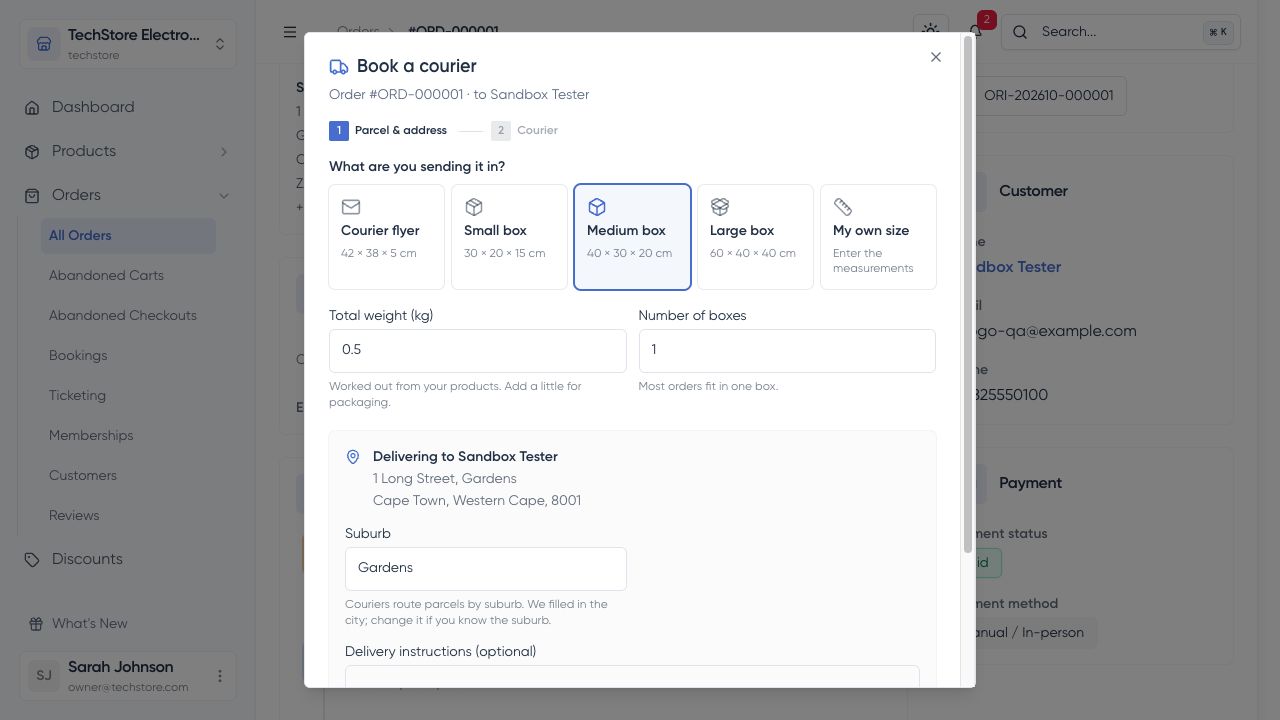
Choose the package
Pick the matching package or My own size and enter its outside dimensions. Correct the suggested values to match what you actually packed.
- 2
Enter total weight and box count
Use kilograms for the total weight. For example, 500 g is 0.5 kg. Number of boxes means parcels in this one booking. The form applies the same dimensions to each box and divides the total weight between them; use it for equally sized and weighted boxes. Ask support about shipments with different boxes.
- 3
Check the suburb and phone
Couriers use the suburb to route deliveries. Replace a suggested city with the actual suburb if needed, and supply a phone number if the form asks for one.
- 4
Add delivery instructions if needed
Use Delivery instructions for information the courier needs, such as a gate code or where to ring. These instructions are shared with the courier. Private notes elsewhere on the order are not sent automatically.
- 5
See the prices
Click See courier prices. Wait for the available services to load.
3. Choose a service and confirm
- 1
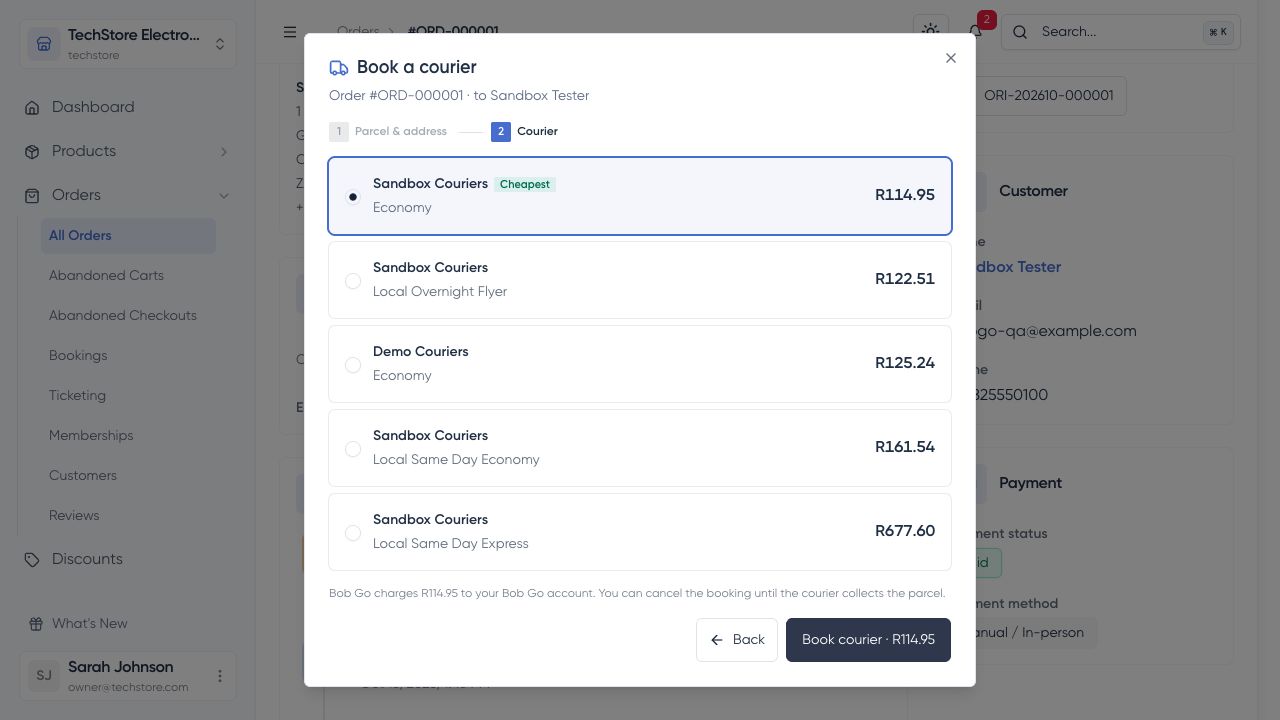
Compare the available couriers
Read the service name and charge. If the customer’s checkout choice is available, it is shown to help you choose. Check that the service suits the delivery promise you made.
- 2
Book the courier
Select a service and click Book courier with the displayed price. In live mode, this charges your Bob Go account.
- 3
Wait for confirmation
A confirming message means Shopstar Go is still checking the booking. Wait for confirmation before printing or arranging another booking.
Do not book twice if the page stalls
A slow response does not always mean the booking failed. Use Refresh on the order and check the shipment in Bob Go before trying again. If it remains confirming, contact support so you avoid a second courier charge.
4. Print the waybill and hand over the parcel
A waybill is the courier’s shipping label. It contains the destination and a barcode used to track the parcel. It is different from the order invoice or packing slip.
- 1
Print the confirmed label
Once the booking is confirmed, use Print waybill for the paper label or Sticker label for a label printer. Open the document and print it clearly; check the barcode and delivery address are readable.
- 2
Label each parcel
Attach the correct label securely to the outside. For multiple boxes, print and attach the labels for each box. Keep the barcode visible and remove old shipping labels.
- 3
Get ready for collection
Keep the labelled parcels at your saved collection address. Make sure the contact person is available. Follow any collection or drop-off instructions for your chosen courier service.
5. Follow the delivery
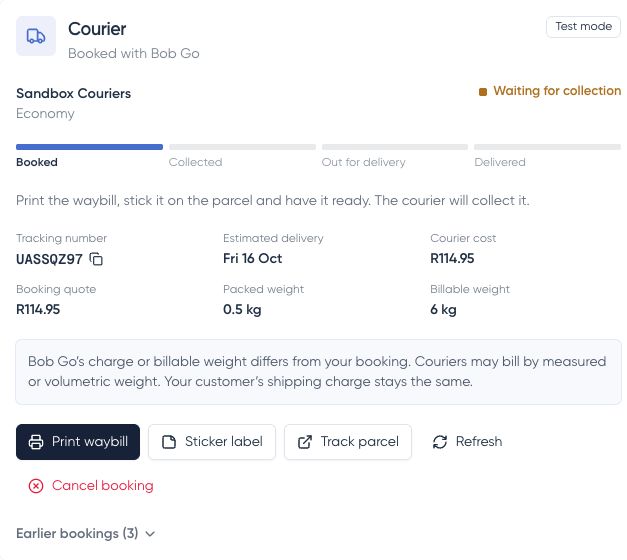
- Waiting for collection: the booking is confirmed, but the courier has not collected the parcel yet.
- In transit: the courier has the parcel. The Shopstar Go order moves to Shipped.
- Out for delivery: the parcel is on its final delivery journey.
- Delivered: Bob Go has confirmed delivery, and the order moves to Delivered.
- A collection or delivery problem: open tracking in Bob Go and contact their support if you need help.
Check the Courier section on the order for the latest stage and tracking link. Updates can take time; use Refresh if needed. Shopstar Go uses the courier’s collection and delivery updates to keep the order status in step and provide customer tracking when an email address is available.
Let courier tracking manage shipped orders
While a Bob Go booking is active, manual Mark Shipped, Mark Delivered, and Cancel Order actions are hidden. Waiting for collection is still before shipping. Connecting Bob Go does not remove manual shipping for every order: orders without an active courier booking can still use it.
Cancel or change a booking
- 1
Cancel the courier first
Before the parcel is collected, open the order’s Courier section and use Cancel booking when available. Confirm and wait for the cancelled status.
- 2
Then choose your next action
After cancellation, you can correct the details and book again, arrange shipping yourself, or cancel the order. Cancelling a courier booking does not cancel or refund the customer’s order.
- 3
If the parcel has already been collected
Contact Bob Go or the courier about changes, returns, or delivery problems. The pre-collection cancellation option is no longer available.
How to refund a customer when needed
Check courier costs and weight adjustments
The order can show your packed weight and the weight Bob Go bills for. Couriers sometimes charge by the space a parcel takes up rather than its scale weight. If the final charge or billable weight changes, compare the original booking quote with the current courier cost shown on the order. Ask Bob Go support about a charge that looks wrong. This does not change the customer’s paid order total.
Frequently asked questions
Why is Book courier missing or unavailable?
Check that Bob Go is connected, your collection address is complete, the physical delivery order is paid, and the customer address is in South Africa. An existing active booking also prevents another booking for the same order. Read the explanation in the Courier section.
The booking failed. What should I do?
Read its error on the order. Check your Bob Go balance, address, phone number, and parcel details. Correct the problem before booking again. If the booking is still confirming, refresh and check Bob Go first rather than making another booking.
Why does Mark Shipped disappear?
An active Bob Go booking owns the courier journey for that order. Shopstar Go waits for the courier to collect before marking it Shipped. This prevents manual actions from getting ahead of courier tracking.
Can I book several orders or ship only some items?
Book each paid order from its Shopstar Go order page. Multiple boxes in one booking are supported, but bulk courier bookings and shipping only part of an order are not available in this integration.
What happens if I disconnect Bob Go?
Bob Go options stop appearing at checkout. Existing bookings are not cancelled and couriers still deliver. Tracking history stays on the order, but refreshing courier updates needs a connected account. Disconnecting does not close your Bob Go account or subscription. Follow any cleanup message Shopstar Go displays, or ask support for help.
Who can help with a delivery problem?
For courier collection, tracking, balances, or courier charges, contact Bob Go support at [email protected]. For connecting your store or using the Shopstar Go order page, use Shopstar’s contact link below. Include the order or tracking reference and the error message, but never your API key.