When a customer pays a deposit, or books to pay at the appointment, the rest is due when they arrive. Everything you need to get paid is right on the booking, so settling up takes a moment and nobody pays twice.
What you need before you start
- A booking with money still due
- Access to your bookings (any team member who can see bookings can collect payment)
- The customer with you if you're adding extras, because they confirm the new total on your screen
See who still owes you
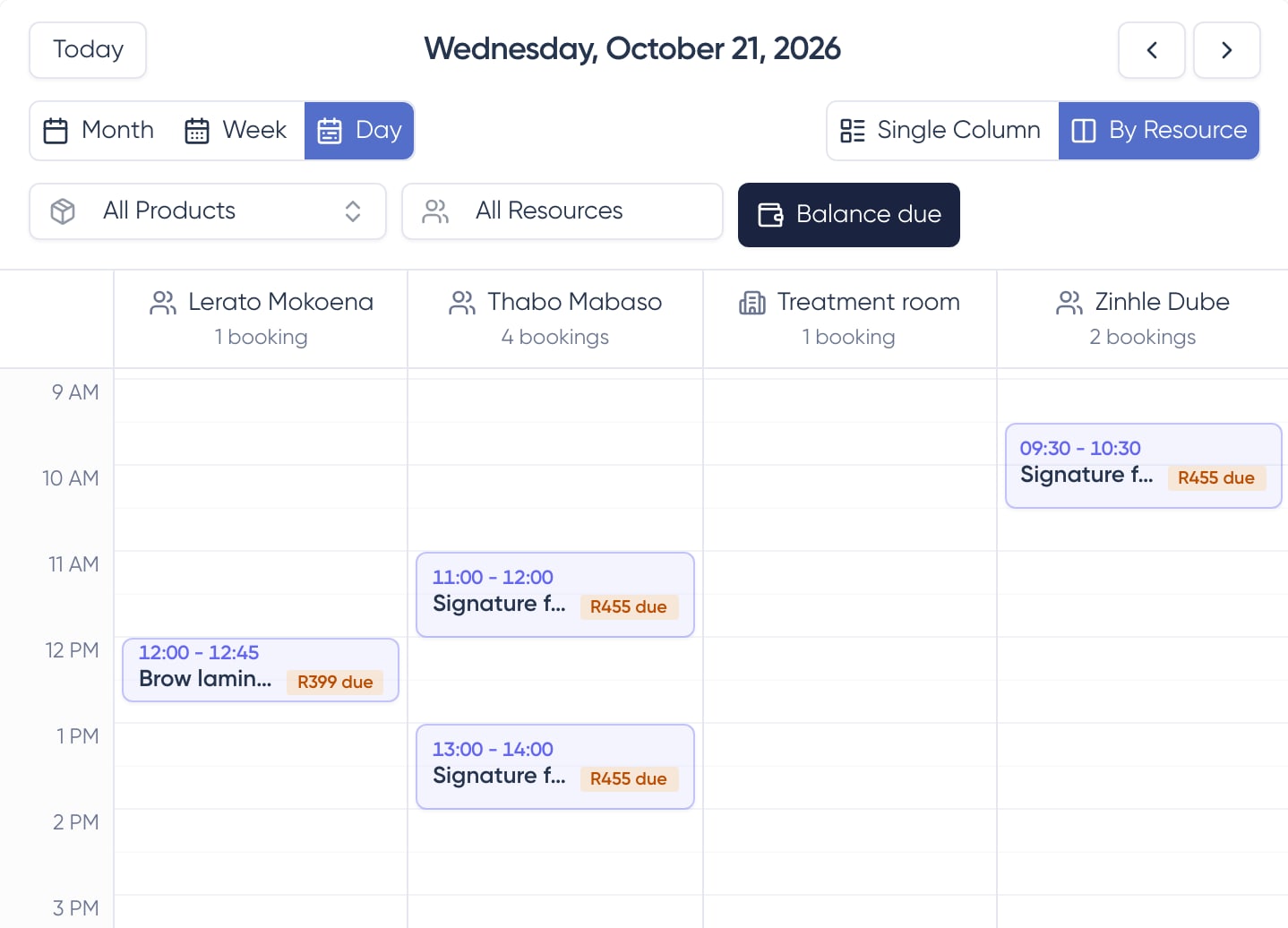
In the sidebar, click Orders, then Bookings. Bookings with money due show the amount on the calendar, like "R455 due". Tap Balance due above the calendar to show only those bookings. The filter works in Calendar view and List view. The order page shows the same Payment section, so you can collect from there too.
Charge the saved card
- 1
Open the booking
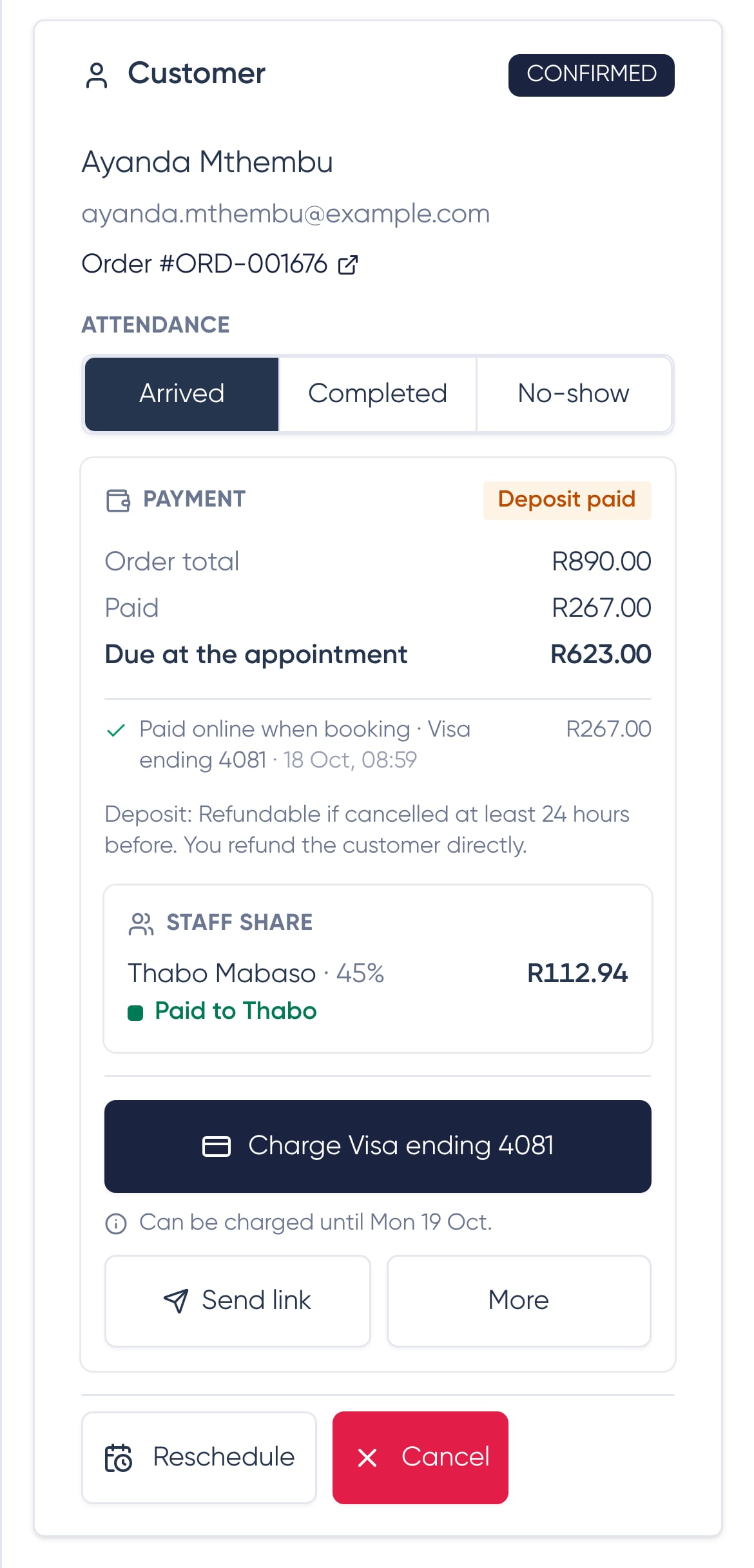
Tap the booking on your calendar. The Payment section shows the booking total, what has been paid, and what is due at the appointment.
- 2
Mark the customer as Arrived
Tap Arrived when they walk in, or Completed when you're done. You can charge the saved card once the booking is marked Arrived or Completed.
- 3
Tap Charge
The button shows which saved card it will charge, with the last four digits of the card.
- 4
Add any extras
Under Anything extra today?, tap an add-on from the service's list, or type a custom line under Something else with its price. Skip this step if there's nothing extra.
- 5
Show the customer
Tap Show the customer and hand them your device. They check the total and the card, then tap I approve to confirm the payment.
- 6
You're paid
The booking is paid in full and the customer gets an itemised receipt by email. Their card is no longer kept on file.
Charge by the end of the next day
You can charge the saved card until the end of the day after the appointment. After that, send a payment link or mark the booking as paid when the customer pays you.
If the card is declined
You'll see a message that the card didn't go through. Send the customer a payment link, or take payment at your venue and mark it as paid.
Send a payment link
- Send link emails the customer a link to pay what's left online. The link stays valid, so they can use it whenever suits them.
- Copy payment link, under More, copies the same link so you can share it any way you like.
- Customers can also pay their balance any time before the appointment from the link in their booking emails or from their account.
No double charges
While a customer has a payment open, you can't charge their saved card. The booking shows a note when this happens. Check back in a few minutes.
Mark it as paid in cash or on your card machine
- 1
Open More on the booking
In the Payment section, tap More, then Mark as paid (cash or card machine).
- 2
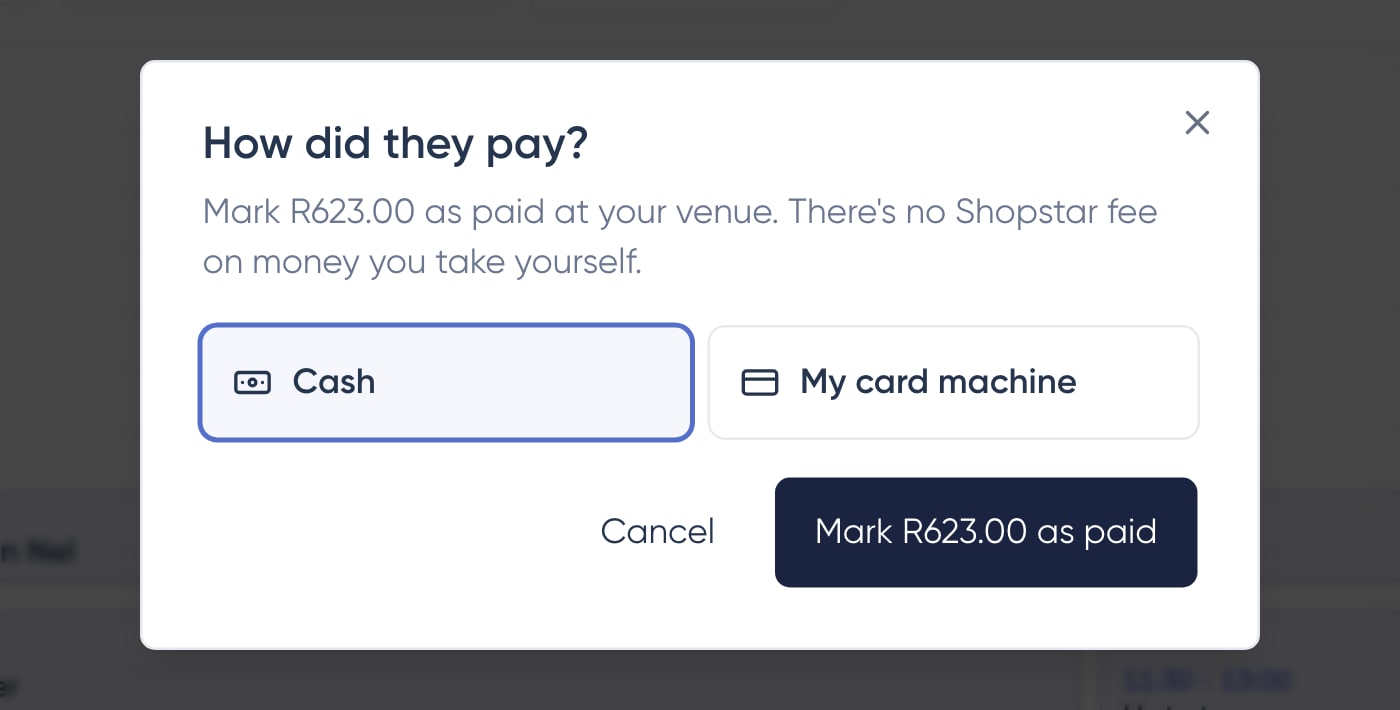
Choose how they paid
Pick Cash or My card machine.
- 3
Confirm the amount
Tap the button, like "Mark R623.00 as paid". The booking is now paid in full.
No Shopstar fee on money you take yourself
Cash and card-machine payments have no Shopstar fee. Your plan's usual fees only apply to money paid through Shopstar: the deposit, a balance paid online, and saved-card charges.
Bookings you add yourself
When you create a booking with New Booking for a service that takes a deposit, you can choose Send Deposit Link next to Send Payment Link. With the deposit link, the customer pays the deposit online and the rest is due at the appointment. No card is saved from a deposit link, so you collect the rest with the payment link or mark it as paid. Send Payment Link still asks for the full price. The Free and Paid options work as before, and the plan rules for online bookings don't apply to bookings you add yourself.
If a booking is cancelled
When a booking is cancelled, by you or the customer, nothing more is owed for it. Its balance is cleared, and the order's total stays as it was. If the order has other bookings, or other people in a group booking are still coming, they still pay their part, and the saved card stays for that. Once nothing is left to pay, the saved card is removed. A deposit that was paid stays with you and follows your deposit policy, so if the customer is owed it back, refund them directly.
Frequently asked questions
Why can't I see a Charge button?
There may be no saved card for this booking. The customer may have paid with a card or payment type that can't be charged again, removed the card from their account, or booked to pay at the appointment. Check that the booking is marked Arrived or Completed too. Otherwise, send a payment link or mark the booking as paid.
Can I charge a customer who doesn't turn up?
No. The saved card can only be charged once the booking is marked Arrived or Completed. Mark the booking as a No-show so your records are right. Any deposit they paid has already been collected.
Who on my team can charge the saved card?
Any team member who can see your bookings can mark attendance, charge the saved card, send a payment link, and mark a booking as paid.
How do part-paid bookings show in my sales reports?
Sales count the money you've actually collected. A booking with only the deposit paid counts the deposit until the rest is paid.
Can the customer pay the rest before they arrive?
Yes. Their booking emails and their account have a link to pay what's left online, any time before the appointment.