Staff earnings is one page with everything your staff have earned from bookings: what was paid straight to them, and what you still owe them for cash, card machine or Stripe payments.
Open Staff earnings
In the sidebar, click Products, then Resources. Click Staff earnings at the top of the page. Owners and managers can open it.
What you see
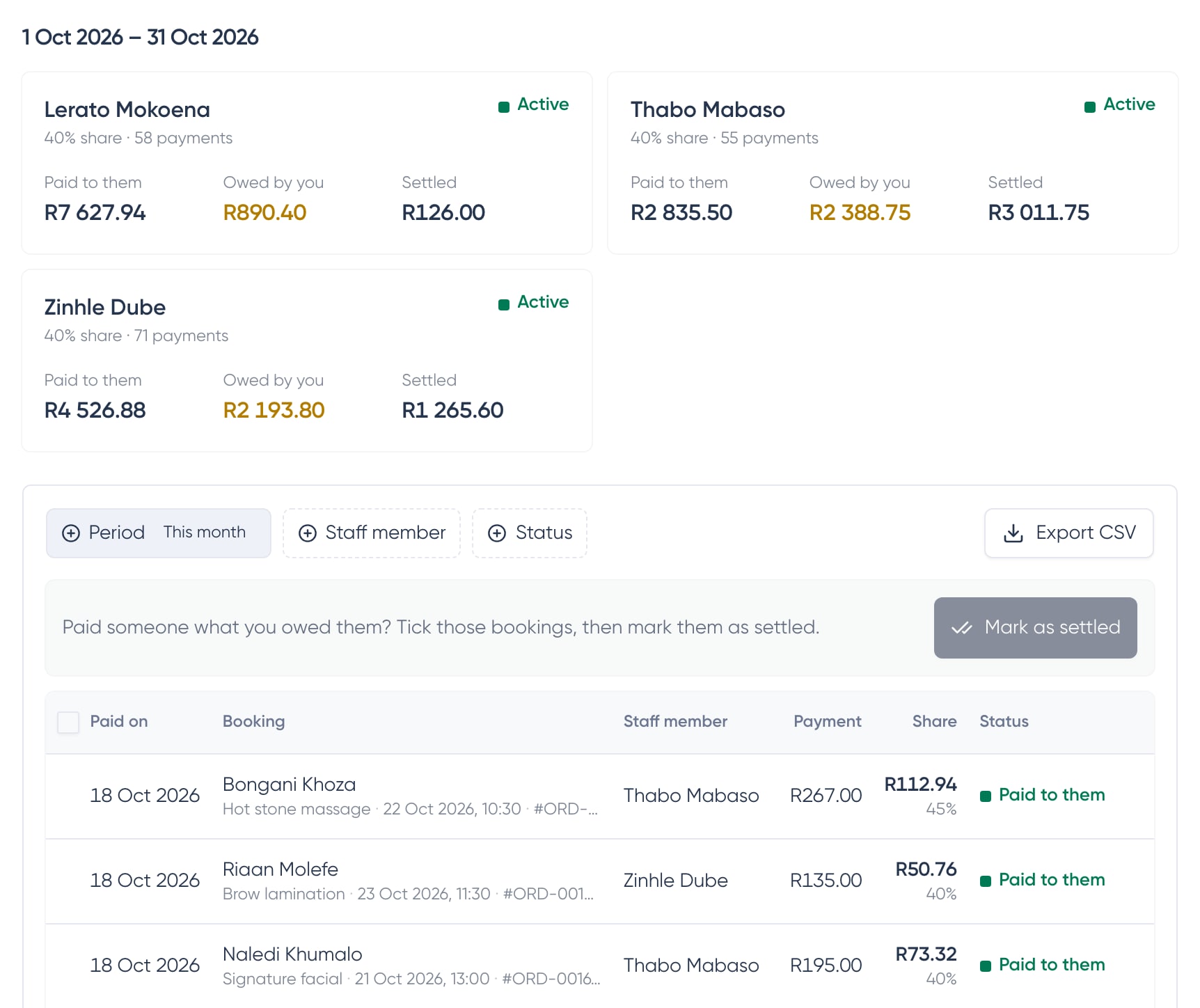
- A card for each staff member with their totals: paid to them, owed by you and settled, plus their payout account status.
- A row for every payment that included a share: the booking, the customer, what was paid, the percentage and the share.
- Paid to them: Paystack paid the share into their bank account.
- Owed by you: the share stayed with you, with the reason (cash or card machine, Stripe, or their account wasn't active yet).
- Settled: you've paid an owed share yourself and marked it.
Above the list, use Period to choose This month, Last month or a Custom range, and filter by Staff member or Status.
Mark owed shares as settled
- 1
Pay your staff member
Pay what you owe them the way you usually do, like a bank transfer.
- 2
Tick the shares you paid
In Staff earnings, filter to Owed by you and tick the bookings you've just paid them for.
- 3
Click Mark as settled
Confirm, and the shares move to Settled with today's date. Only the store owner can do this.
Export for your records
Click Export CSV to download every payment in the period you're looking at, for your bookkeeper or payroll.
Frequently asked questions
Why is a share owed when the customer paid online?
Either your store takes payments through Stripe, or the staff member's bank account wasn't active yet when the customer paid. Both are shown as the reason on the row.
Can I undo "settled"?
Not from the page. If you marked the wrong share, contact support and we'll help you correct it.
Does a refund change what my staff member earned?
No. Refunds don't change staff earnings. If you refund a booking, sort the staff member's share out with them directly.