People who've paid something up front are far more likely to turn up. You choose how customers pay for your bookings: the full price when they book, a deposit now and the rest at the appointment, or (on the Subscription plan) everything at the appointment. Set one default for your store, then give any service its own option when it needs something different.
What you need before you start
- At least one booking service (see "Sell bookings and services")
- Payments set up with Stripe or Paystack
- An idea of how much you want up front, as a percentage or a fixed amount per person
The ways customers can pay
- Pay in full online — customers pay the whole price when they book. This is the default.
- Deposit online, rest at the appointment — customers pay part now to secure their booking and the rest when they arrive.
- Pay at the appointment — customers book without paying and pay you when they arrive. This is available on the Subscription plan.
Set your store default
- 1
Open your booking settings
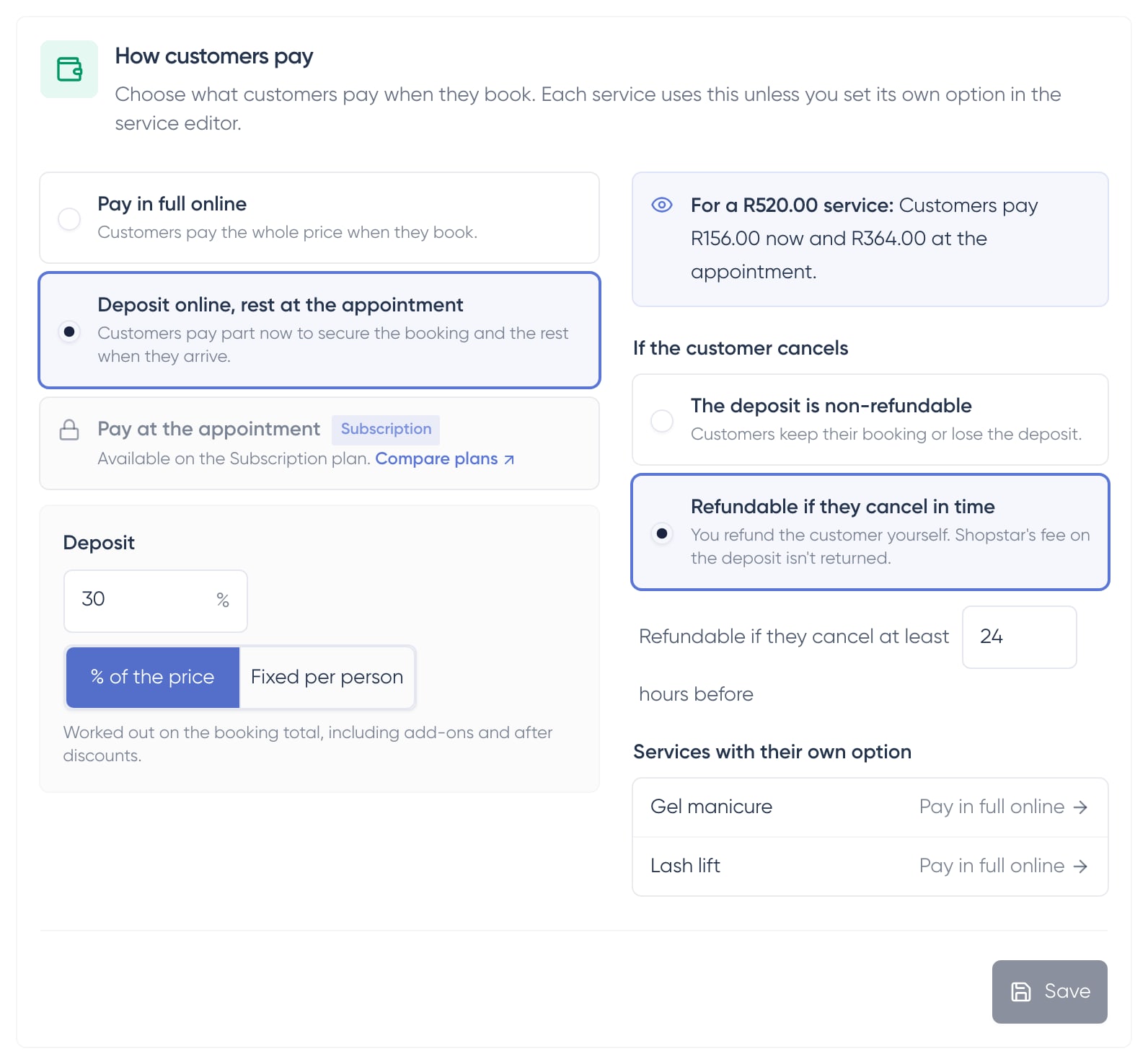
In the sidebar, click Store, then Products. Switch to the Bookings tab and find How customers pay.
- 2
Choose how customers pay
Pick Pay in full online, Deposit online, rest at the appointment, or Pay at the appointment. If your plan doesn't include an option, it's shown locked with a note on how to unlock it.
- 3
Set the deposit amount
If you chose a deposit, pick % of the price or Fixed per person, then type the amount. A percentage is worked out on the booking total, including add-ons and after discounts. A fixed deposit is charged for each person on the booking.
- 4
Check the preview
The preview shows what customers pay for an example service, like "Customers pay R156.00 now and R364.00 at the appointment." It updates as you type.
- 5
Choose your deposit policy
Under If the customer cancels, pick The deposit is non-refundable, or Refundable if they cancel in time and type how many hours before the appointment they need to cancel.
- 6
Click Save
New bookings use your payment options straight away. Bookings that were already made keep the terms they were booked with.
Give one service its own option
- 1
Open the service
In the sidebar, click Products and open the booking service. A brand-new service uses your store default, so save it once before you change this.
- 2
Find How customers pay
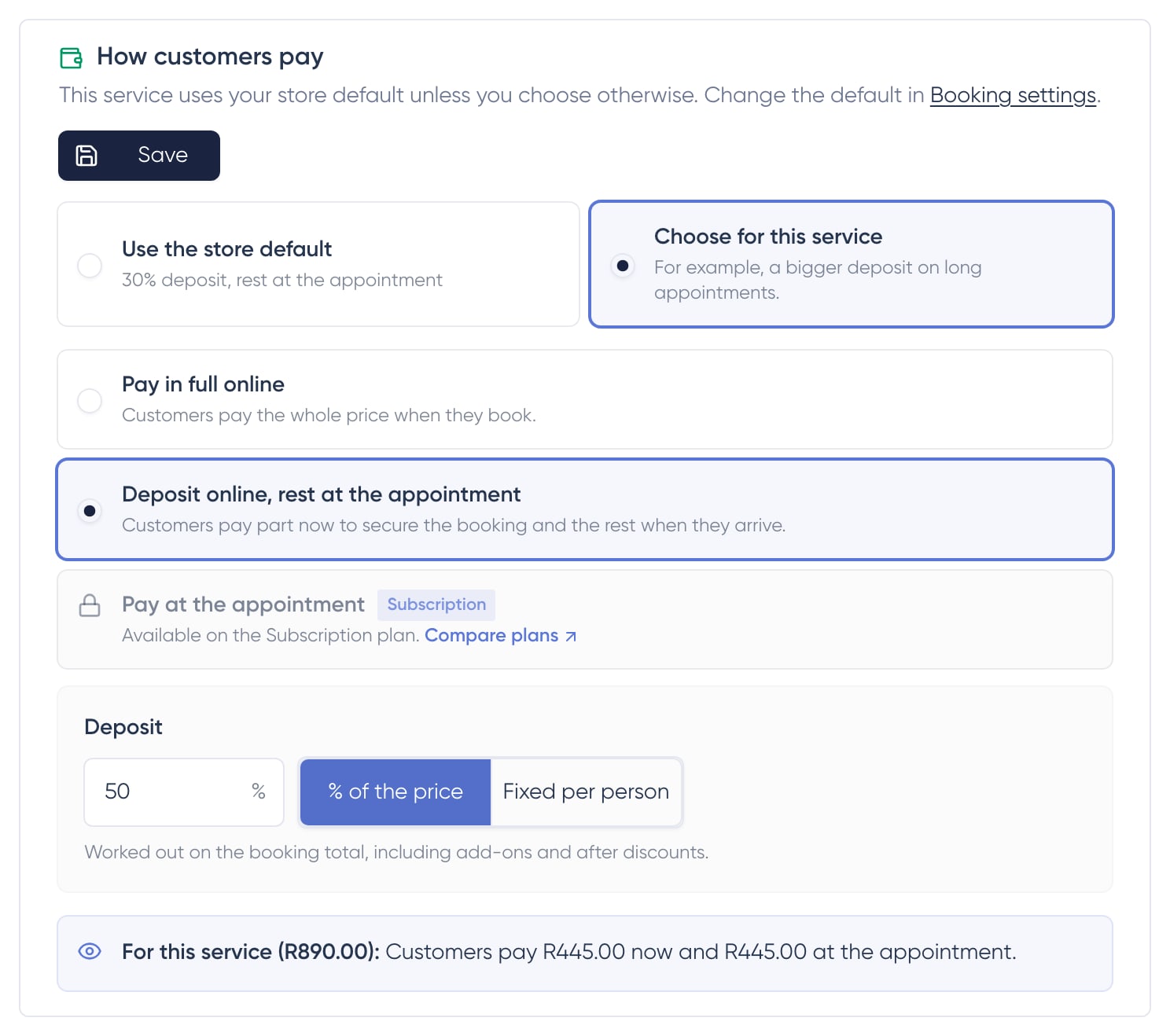
The section starts on Use the store default and shows what that default is.
- 3
Pick Choose for this service
Choose how customers pay and set the deposit amount for just this service. For example, ask for a bigger deposit on long appointments.
- 4
Click Save
New bookings of this service use its own option. Back on the Bookings tab, every service with its own option is listed under How customers pay, so you can see what is different at a glance.
Your deposit policy
Your deposit policy covers every service that takes a deposit. Non-refundable means customers keep their booking or lose the deposit. Refundable if they cancel in time means a customer who cancels at least the number of hours you set before the appointment gets their deposit back.
You refund deposits yourself
Shopstar doesn't refund deposits for you. If a customer is owed their deposit back under your policy, refund them directly. The Shopstar fee on the deposit isn't returned.
What your customers see
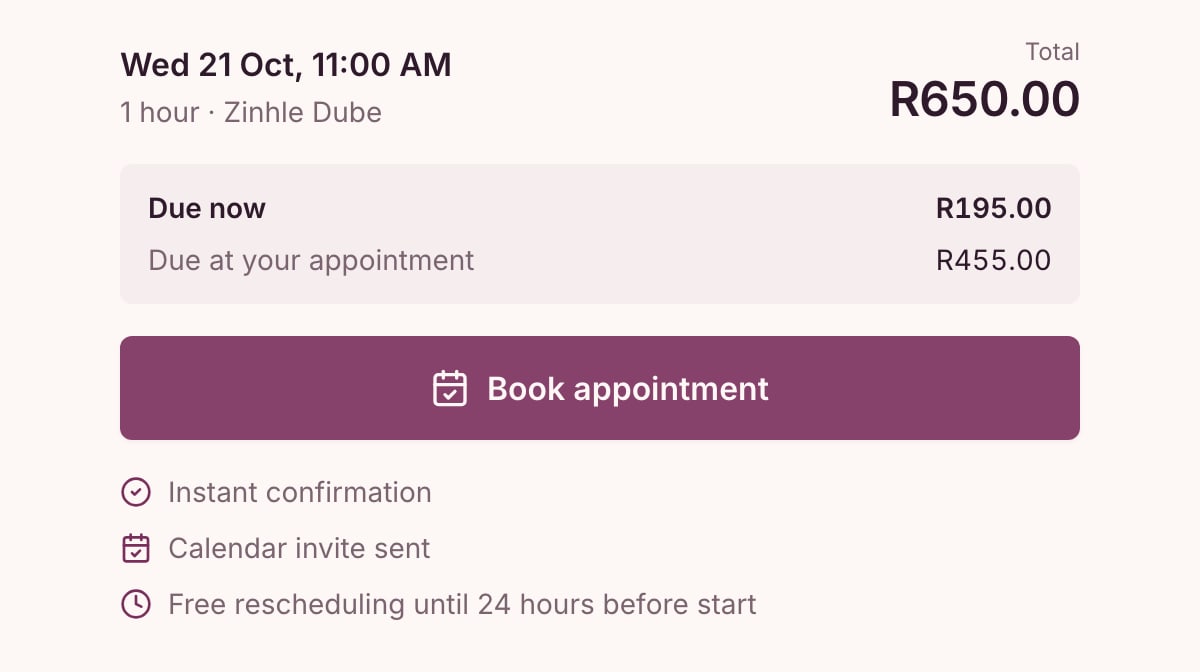
- On the service page and in the cart: a line like "R195.00 deposit to book · R455.00 at your appointment"
- At checkout: separate Due now and Due at your appointment lines, your deposit policy, and a button that reads "Pay R195.00 deposit"
- In their booking confirmation, reminder and order confirmation emails: what they have paid, what is still due, and a "Pay R455.00 now" button
- On their pay page and when they cancel from their account: your deposit policy, so they know where they stand
Their card is saved for the rest
When a customer pays a deposit by card, checkout asks them to agree that you can charge the rest, plus any extras they approve at the appointment, to that card. That means you can settle up in a moment when they arrive. The article "Collect what's left at the appointment" walks through it.
- Paying in full never saves a card
- Some cards and payment types can't be charged again, so they aren't saved. For those bookings, send a payment link or take payment at your venue.
- Customers can remove a saved card from their account at any time and pay the rest another way
Your plan sets a few rules
Deposits work on both plans. On Pay Per Sale, a deposit must be at least 20% of the booking total, pay at the appointment isn't available, and free services can't take online bookings. On Subscription, every option is available. See "How your plan affects booking payments" for the details.
Match the deposit to the slot
Think about what an empty slot costs you. A short, low-priced service might be fine with pay in full, while a long appointment can have its own bigger deposit.
Frequently asked questions
Does the deposit include add-ons?
Yes. A percentage deposit is worked out on the booking total, which includes add-ons and takes off any discounts.
How does a fixed deposit work for group bookings?
A fixed deposit is per person. If three people book together and your deposit is R100, they pay R300 when they book.
What if the deposit is more than the booking costs?
Then the customer simply pays in full when they book. A deposit equal to or above the booking total works the same as pay in full.
Why can't I save a very small deposit?
Card providers can't charge very small amounts. If your deposit is too small to charge, your settings show a message so you can raise it.
Does this work with Stripe and Paystack?
Yes. Deposits and saved cards work with both.