Front Desk shows each person what's theirs. For a stylist, therapist or trainer to see their own appointments, their login needs to be linked to their staff profile. You set this up once per person from Resources, by inviting them or by choosing someone who's already on your team.
What you need before you start
- You're the store owner. Managers can see who each staff member is linked to, but can't change it.
- The person is set up as a Staff resource (see "Manage booking resources")
- Their email address on their staff profile, if you're inviting them
Link a staff member to their login
- 1
Open the staff member
In the sidebar, click Products, then Resources. Click the staff member's name to open their details and scroll down to Front Desk login. Rooms and equipment don't have this, only Staff resources.
- 2
Invite them
Click Invite (with their first name). They get a login with the Staff role, linked to their staff profile, and one email.
- 3
Or choose someone already on your team
If they already sign in to your store, pick them under Link an existing team member instead. They're linked straight away and no email is sent.
- 4
Check the status
The card now shows their login and role. Invite pending means they haven't accepted their invite yet. Can sign in means they're ready to use Front Desk.

What the invite email says
- Someone new gets an invitation to join your team. Once they accept it, they can sign in to Front Desk with that email.
- Someone who already has a Shopstar login gets a short email saying they can sign in to Front Desk now.
- If you invite your own email, you're linked straight away and nothing is sent.
- People already on your team keep the role they have.
Paying them a share? One invite does both
If you've turned on Pay this person a share and their payout account isn't set up yet, the card says the payout invite above also lets them sign in to Front Desk. Send that invite and they set up their login and their bank account in one go.
Get your staff paid into their own bank account
What each person sees in Front Desk
- Owners and managers: every appointment and every event. They can book, move and cancel appointments, block time and take payments.
- Staff: their own appointments, or everyone's if you turn on Staff can see everyone's appointments. They can mark attendance, take payments and check guests in to events. They can't book, move or cancel appointments, or block time.
- Check-in only: events, to check guests in at the door. No appointments.
Until their login is linked, a staff member sees no appointments (unless you let staff see everyone's), and a note asks them to get the store owner to link them under Resources. The same appointment rules apply when your staff sign in to Shopstar on the web.
Let staff see everyone's appointments
Staff see only their own appointments to start with. If your team shares a front desk or covers for each other, you can let every staff member see the whole calendar.
- 1
Open your booking settings
In the sidebar, click Store, then Products. Switch to the Bookings tab and scroll to Staff Access.
- 2
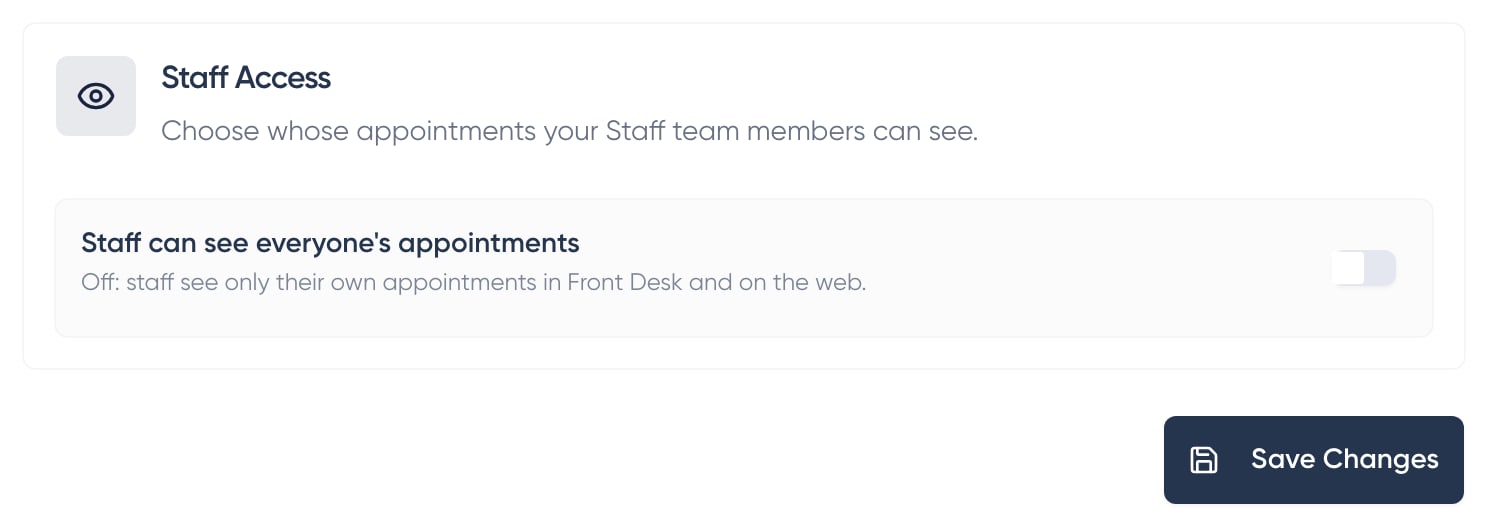
Turn on Staff can see everyone's appointments
When it is off, staff see only their own appointments in Front Desk and on the web.
- 3
Click Save Changes
It's at the bottom of the page, under Staff Access.
Seeing is not changing
Seeing everyone's appointments doesn't let staff book, move or cancel them. That stays with owners and managers.
See and sign out your phones
Front Desk keeps people signed in so your team doesn't need a new code every morning. That means a lost or handed-on phone stays signed in until someone signs it out.
- 1
Open your account
Click your name at the bottom of the sidebar, then Account.
- 2
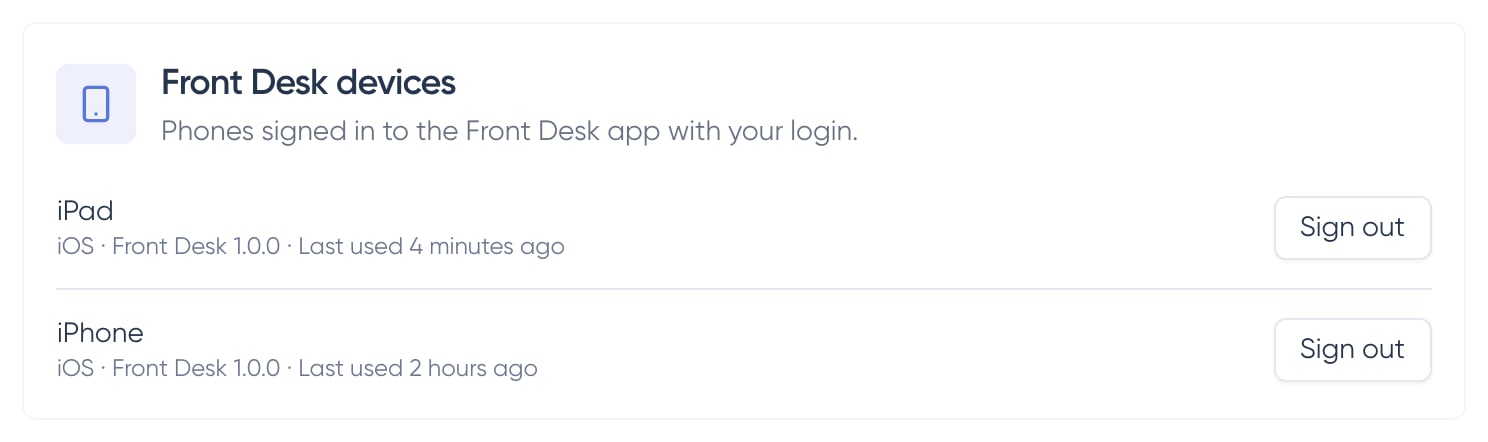
Find Front Desk devices
It lists every phone and tablet signed in to Front Desk with your login, most recently used first, with when each one was last used.
- 3
Click Sign out
Confirm, and Front Desk on that phone signs out straight away. You can sign in on it again at any time.
You only see your own phones
You can't sign out a staff member's phone from your account. They can do it themselves from Settings in Front Desk. If someone leaves, remove them from your team: Front Desk stops showing them your store straight away, and they're unlinked from their staff profile.
Frequently asked questions
Why is the Invite button greyed out?
Their staff profile has no email address. Add it in their details, click Update, then invite them. Invites are sent by email for now.
Can I link a staff member to my own login?
Yes. If you take bookings yourself, choose yourself under Link an existing team member. Front Desk then lets you switch between everyone and your own appointments.
Can one login be linked to two staff members?
No. Each login can be one staff member in your store. Someone who's already linked shows who they're linked to in the list, so unlink them there first.
How do I change who a staff member signs in as?
Click Unlink on their Front Desk login card, then invite them again or choose someone else from your team.
Can managers link staff?
No. Managers can see who each staff member is linked to, but only the store owner can invite, link or unlink.