On the day of your event, Front Desk turns an iPhone or iPad into a door scanner. Scan each guest's ticket, hear a sound and feel a buzz for every answer, and see at a glance how many people are still to come. Several people can scan at the same event, and no ticket gets in twice.
What you need before you start
- The Front Desk app, signed in to your store (see "Run your front desk from your phone")
- A ticketed event with a date, set up on the web
- Wi-Fi or mobile data at the door
- Your door helpers on your team. Every role can check guests in, including Check-in only.
Find your event
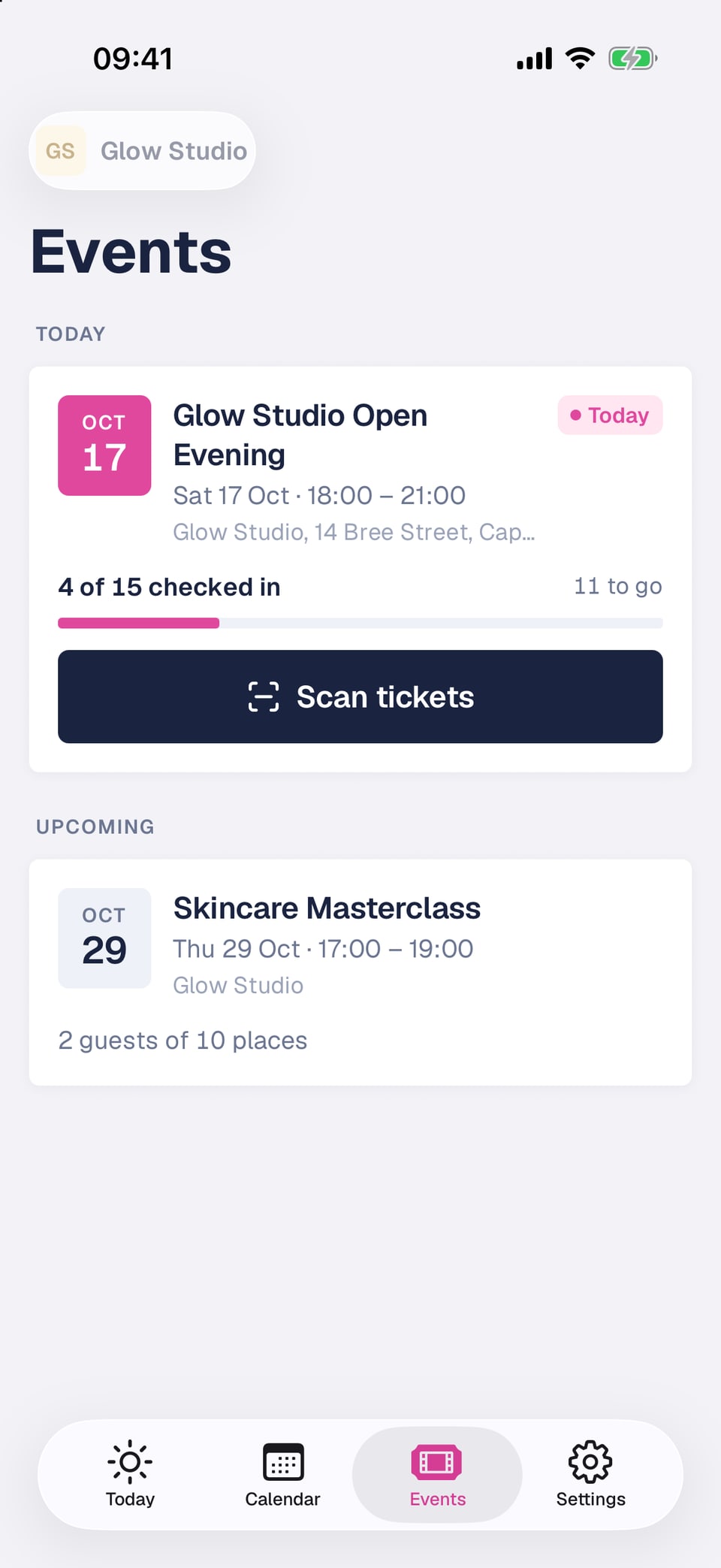
Open the Events tab. Your events are grouped into Today, Upcoming, Past and Cancelled. Each card shows the date, time and venue, and how many guests have checked in. Past events stay in the list for 30 days after they end.
Your guest list
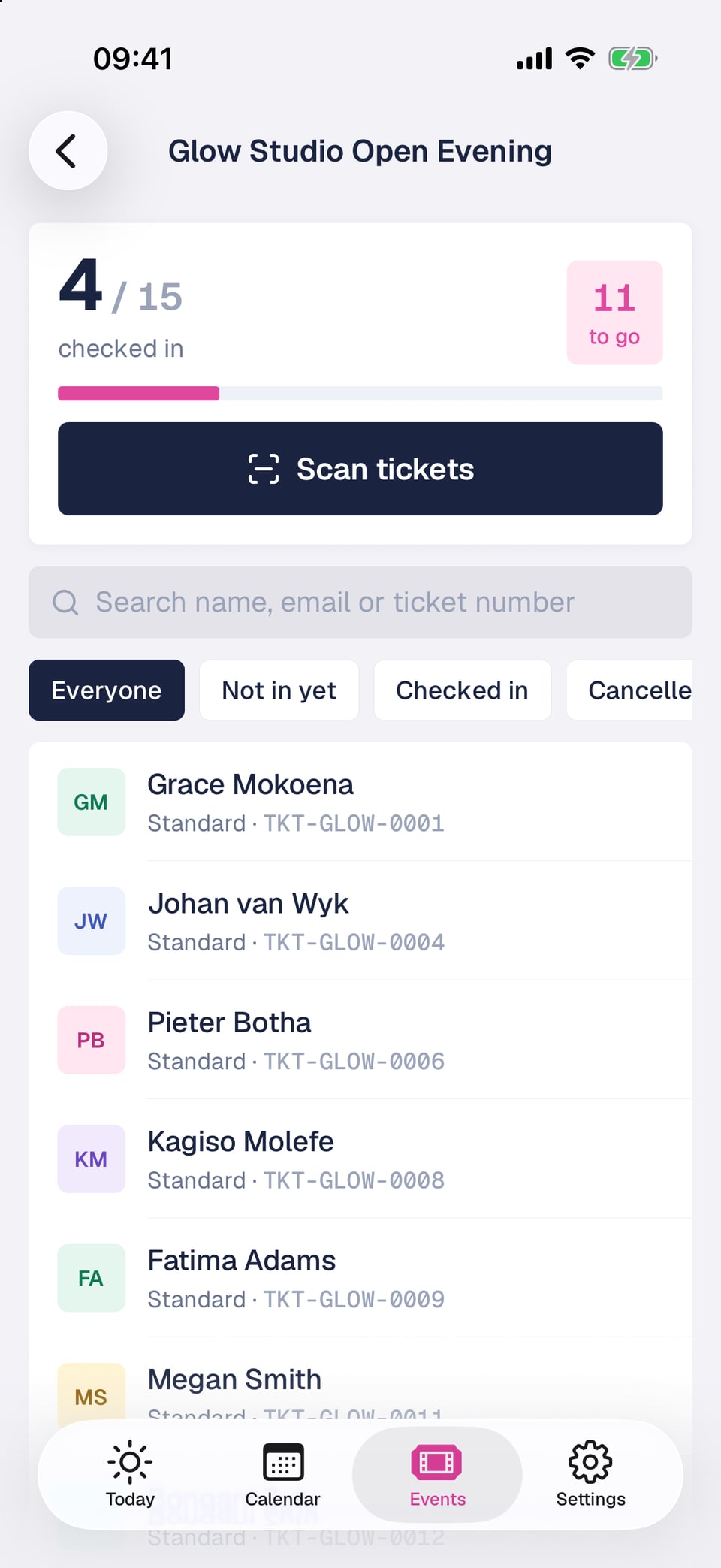
Tap an event to open its guest list. The top shows how many guests are checked in, how many are still to come, and a Scan tickets button.
- Search by name, email or ticket number.
- Filter by Everyone, Not in yet, Checked in or Cancelled.
- Tap a guest, then Check in, to let them in by hand.
- Owners and managers can also tap Resend ticket to email it to the guest again, or Cancel ticket. A cancelled ticket can't be used and we let the guest know by email. Refunds are done on the web.
Scan tickets at the door
- 1
Tap Scan tickets
It's on the event and on today's event card in Events. The first time, allow Front Desk to use your camera.
- 2
Point at the QR code
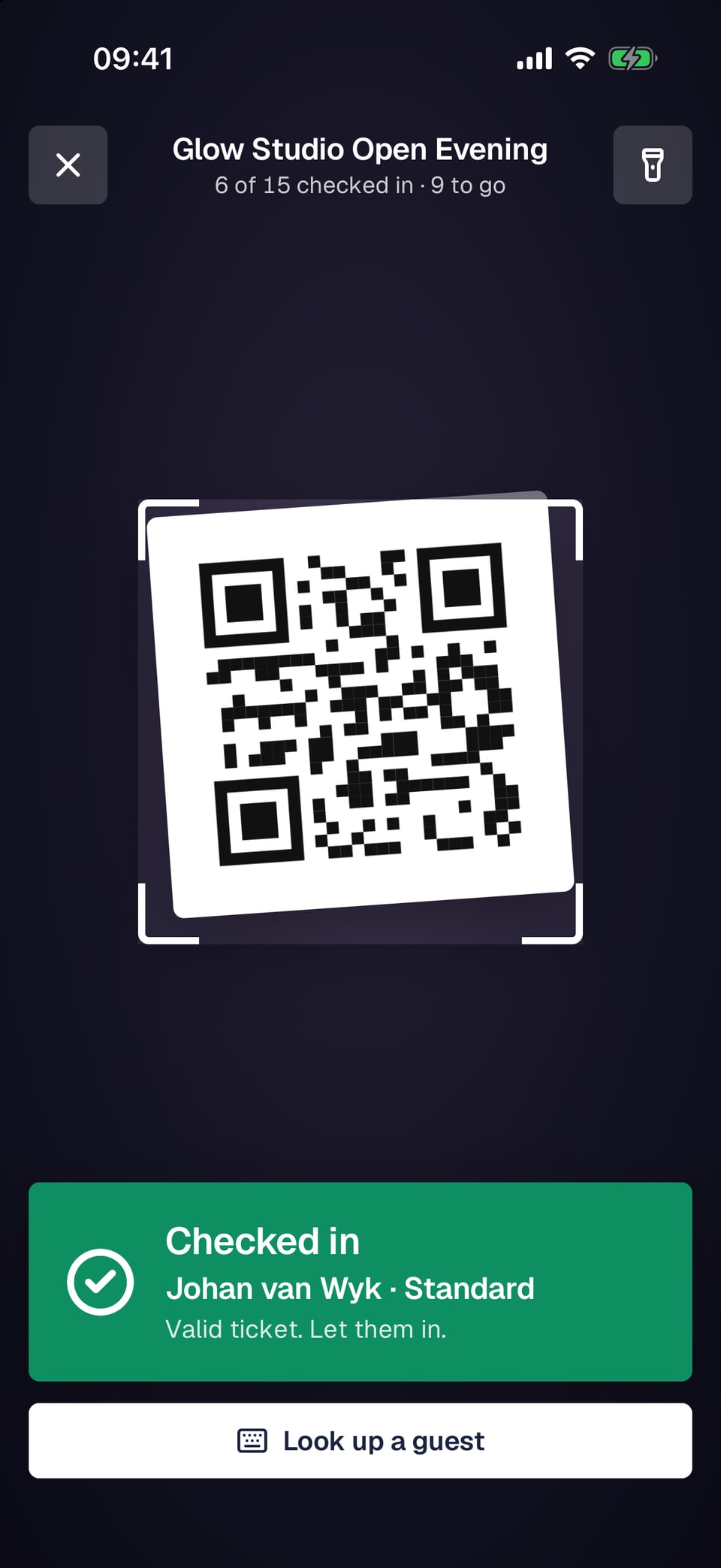
Hold the QR code on the guest's ticket inside the frame, on their phone or on paper. Front Desk scans it on its own, so there's nothing to tap. Tap the torch button if the room is dark.
- 3
Read the answer
Green means let them in. Amber or red means stop and check. Each answer clears after a few seconds, or as soon as you scan the next ticket.
- 4
Keep going
The count at the top goes up as guests arrive, including guests checked in on other phones.
What each answer means
- Checked in (green): a valid ticket. Let them in.
- Already checked in (amber): this ticket was used before. Front Desk shows when.
- Ticket cancelled (red): the ticket was cancelled, so it can't be used.
- Different event (red): the ticket is for another of your events, and Front Desk names it.
- Ticket not found (red): there's no ticket with this number for this event.
- Not a valid ticket (red): the code isn't a ticket Front Desk can check. Ask the guest to open their ticket from their email.
- Check-in closed (amber): check-in only opens on the day of the event.
When a code won't scan
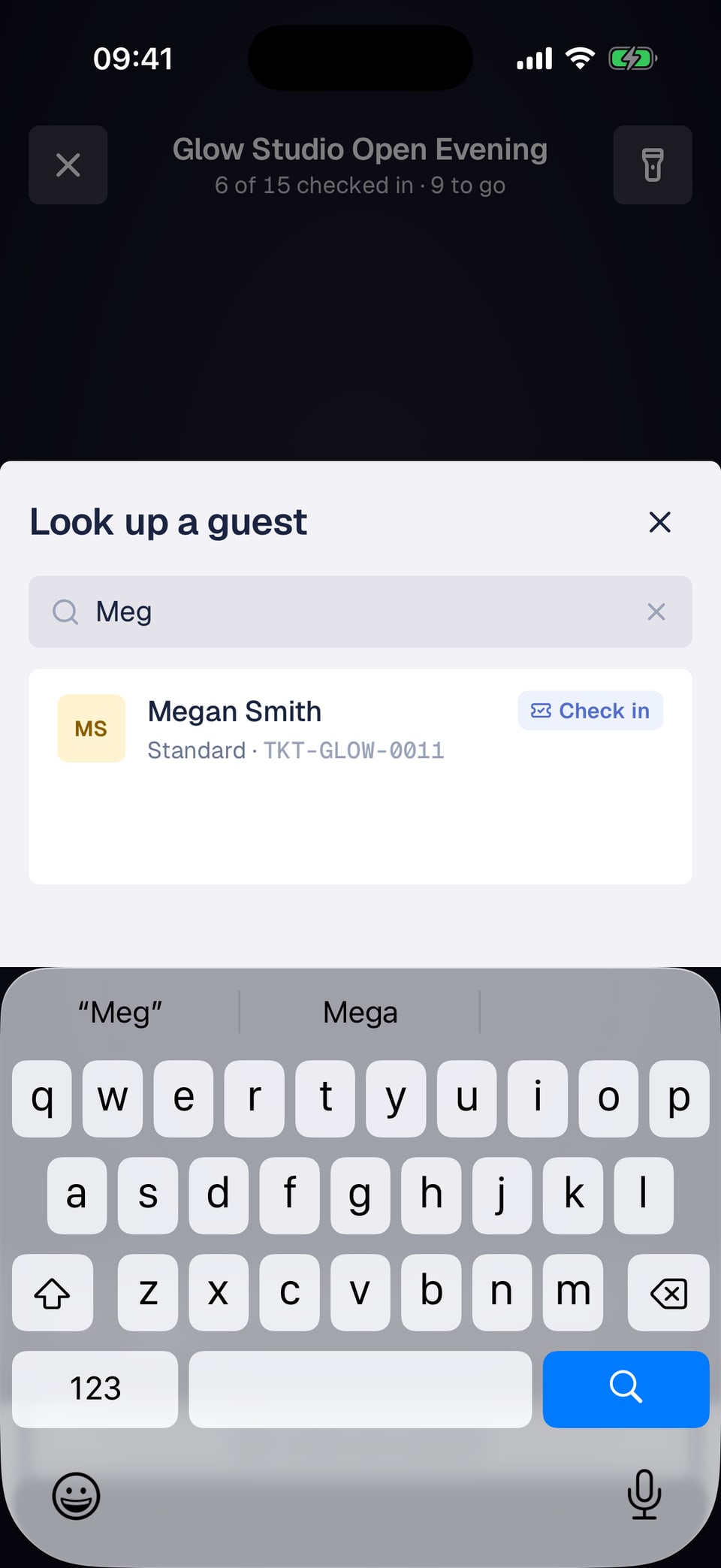
Tap Look up a guest at the bottom of the scanner. Type at least two letters of the guest's name, or their email or ticket number. Only guests who haven't checked in yet are listed. Tap the guest to check them in.
Check-in needs a connection
Front Desk checks every ticket online, so the same ticket can't get in at two doors. If the connection drops, scanning pauses and starts again when you're back online. Test the Wi-Fi or signal at your door before guests arrive.
Camera access turned off?
If you said no to the camera, the scanner shows Open Settings so you can allow it. You can still look guests up by name in the meantime.
Frequently asked questions
Who can check guests in?
Everyone on your team who can sign in to Front Desk: owners, managers, staff and Check-in only. Only owners and managers can resend or cancel tickets.
Why can't I scan tickets for my event yet?
Check-in opens on the day of the event, and on every day of an event that runs over several days. The event also needs a date.
Can two people scan at the same time?
Yes. Several phones and iPads can scan the same event at once. Each ticket can only be checked in once, and every phone shows the same count.
Can I undo a check-in?
Not in Front Desk. If you checked in the wrong guest, contact support.
Can I still use check-in mode in my dashboard?
Yes. Check-in mode on the web works as before, and check-ins from both end up on the same guest list.