If your stylists, therapists or trainers earn a percentage of the bookings they do, Shopstar can pay them for you. Set each person's share once. When a customer pays for a booking, Paystack sends the staff member their share and you the rest, at the same time. Nobody has to work it out at month end.
What you need before you start
- You are the store owner. Managers can see shares and earnings but can't change them.
- The staff member is set up as a Staff resource (see "Manage booking resources")
- Their email address is on their resource, so you can invite them
- Payments set up with Paystack, for shares to be paid automatically
Set a staff member's share
- 1
Open the staff member
In the sidebar, click Products, then Resources. Click the staff member's name to open their details. Manage schedule (in the ⋯ menu) shows the same settings.
- 2
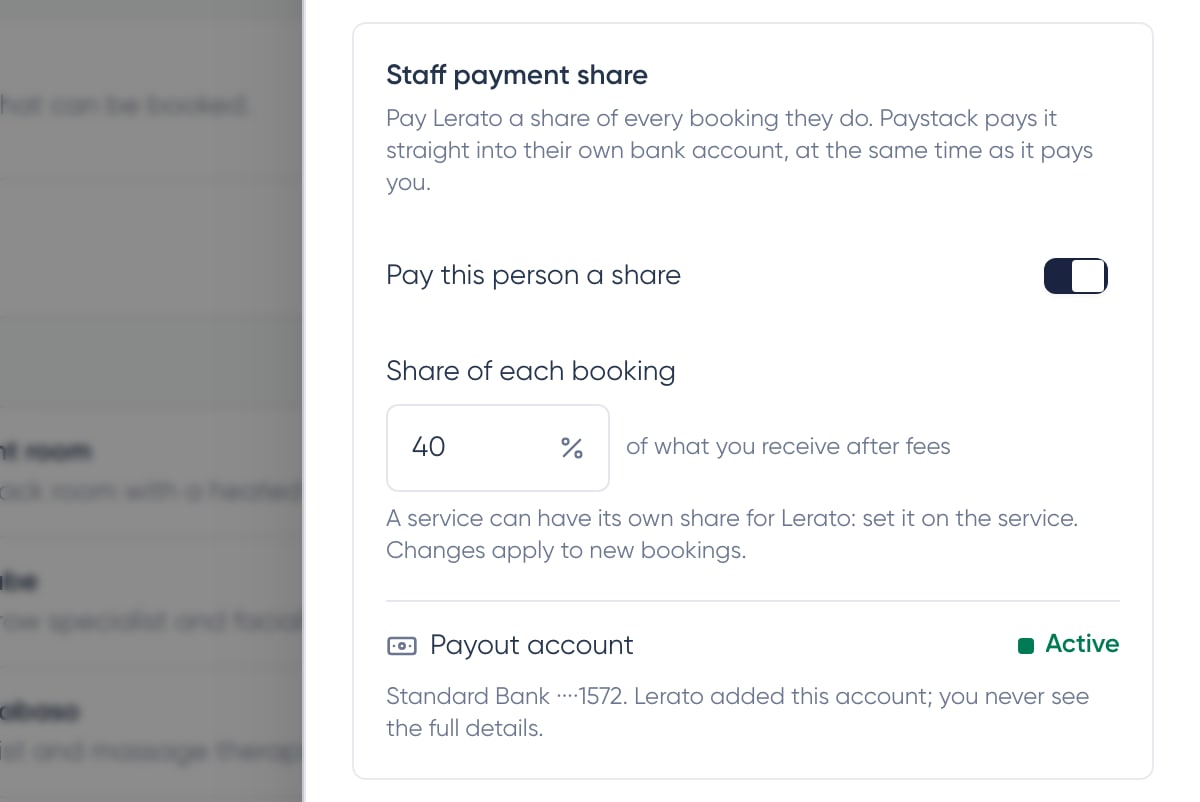
Turn on "Pay this person a share"
You'll find it under Staff payment share. Rooms and equipment don't have this, only Staff resources.
- 3
Enter their share
Type the percentage under Share of each booking, like 40. It's a share of what you receive after fees, so the staff member and you share the cost of the fees in proportion.
- 4
It saves on its own
The share saves as soon as you press Enter or click away, and you'll see "Saved". New bookings use this percentage from now on.
- 5
Invite them to add their bank account
Click Invite (with their first name). They get an email to add their own bank account. Until it's active, their share stays with you and shows as owed. See "Get your staff paid into their own bank account".
Give a service its own share
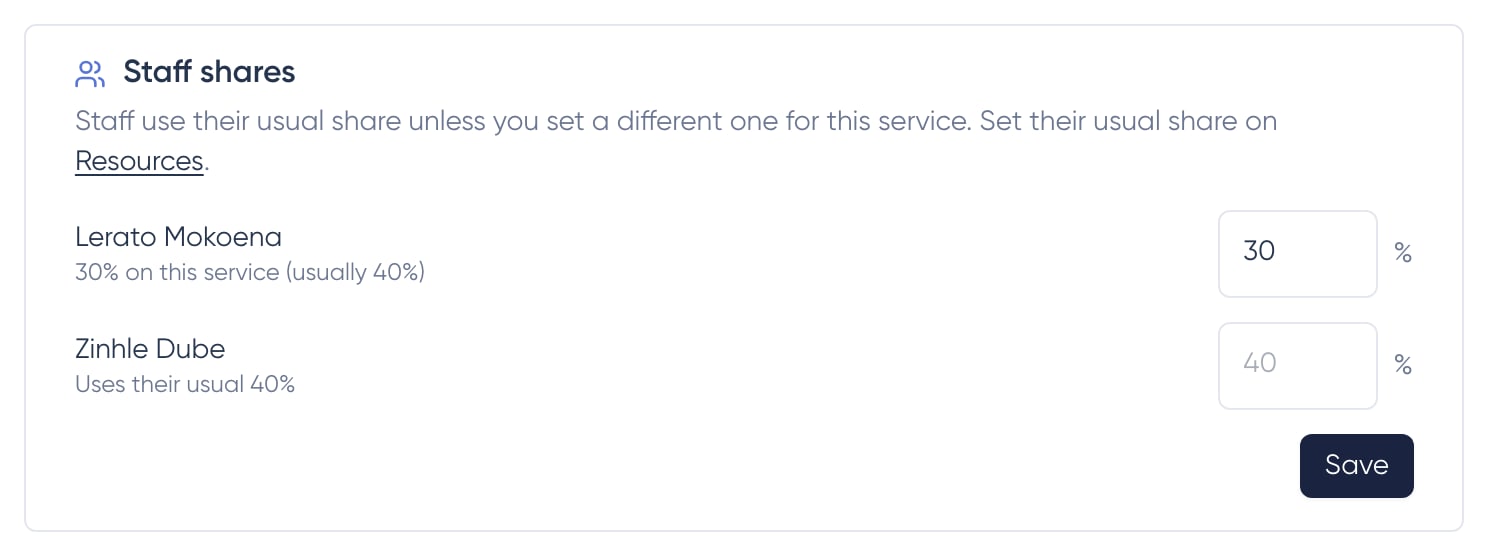
Someone might take 40% on most services but 30% on colour, where products cost more. Open the service (Products, then the booking service) and find Staff shares. Each staff member who takes a share is listed with their usual percentage. Type a different percentage for this service, or leave it empty to use their usual one, then click Save.
How a share is worked out
The share is a percentage of what you receive for the booking after Shopstar and payment fees. For example, a R500 booking with R30 in fees leaves R470. At 40%, the staff member gets R188 and you keep R282.
- The percentage is copied onto each booking when it's made. If you change someone's share later, bookings they already have keep the old percentage.
- Deposits and balances are each shared when they're paid. A R100 deposit and the R400 balance at the appointment both pay the staff member their share.
- If you move a booking to another staff member before it's paid in full, what's still to be paid goes to the new person at their percentage.
- Add-ons on the booking are included, and discounts are taken off first, so the share follows what the customer actually paid.
When a share is owed instead of paid
Paystack can only split money that comes through Shopstar. In these cases the share is recorded as owed by you, and you pay the staff member yourself:
- The customer paid in cash or on your own card machine
- Your store takes payments through Stripe
- The staff member's bank account wasn't active yet when the customer paid
A payment never fails because of a share
If something stops a share being paid automatically, the customer's payment still goes through. The share is simply recorded as owed so you can pay it yourself.
Check who gets what in one place
Staff earnings (on the Resources page) shows every share, what Paystack has paid and what you still owe. See "See and settle what your staff have earned".
Frequently asked questions
Can a manager change shares?
No. Only the store owner can turn shares on, change percentages or invite staff. Managers can see shares on resources, services and bookings, and open Staff earnings.
Can I see a share on a booking?
Yes. Open the booking from your calendar. The payment section shows the staff member's share and whether it was paid to them or is owed by you.
Does this work with group bookings?
Yes. A group booking is shared once for the staff member who takes it, based on what the whole group paid.
What if I turn someone's share off?
New bookings stop including a share. Bookings they already have keep the percentage that was copied onto them.