Front Desk puts each appointment in your hand: who's coming, what they've paid and what's still due. Book a walk-in in a few taps, mark people as they arrive, and settle up at the end of the visit without going to a computer.
What you need before you start
- The Front Desk app, signed in to your store (see "Run your front desk from your phone")
- The owner or manager role to book, move or cancel appointments. Staff can mark attendance and take payments.
- At least one booking service set up on the web
- Payments set up with Stripe or Paystack, for saved cards and payment links
Book a walk-in
- 1
Tap +
On Today, tap + at the top. In Calendar, tap + and choose New booking.
- 2
Choose the service
Each service shows how long it takes and its price.
- 3
Pick who and when
If more than one person does the service, choose a staff member or Anyone available. Pick the day, then one of the free times. Only times that are still free are shown.
- 4
Add the customer
Search Existing customer by name, email or phone, or switch to New customer and enter their first name and email. Their last name and mobile number are optional.
- 5
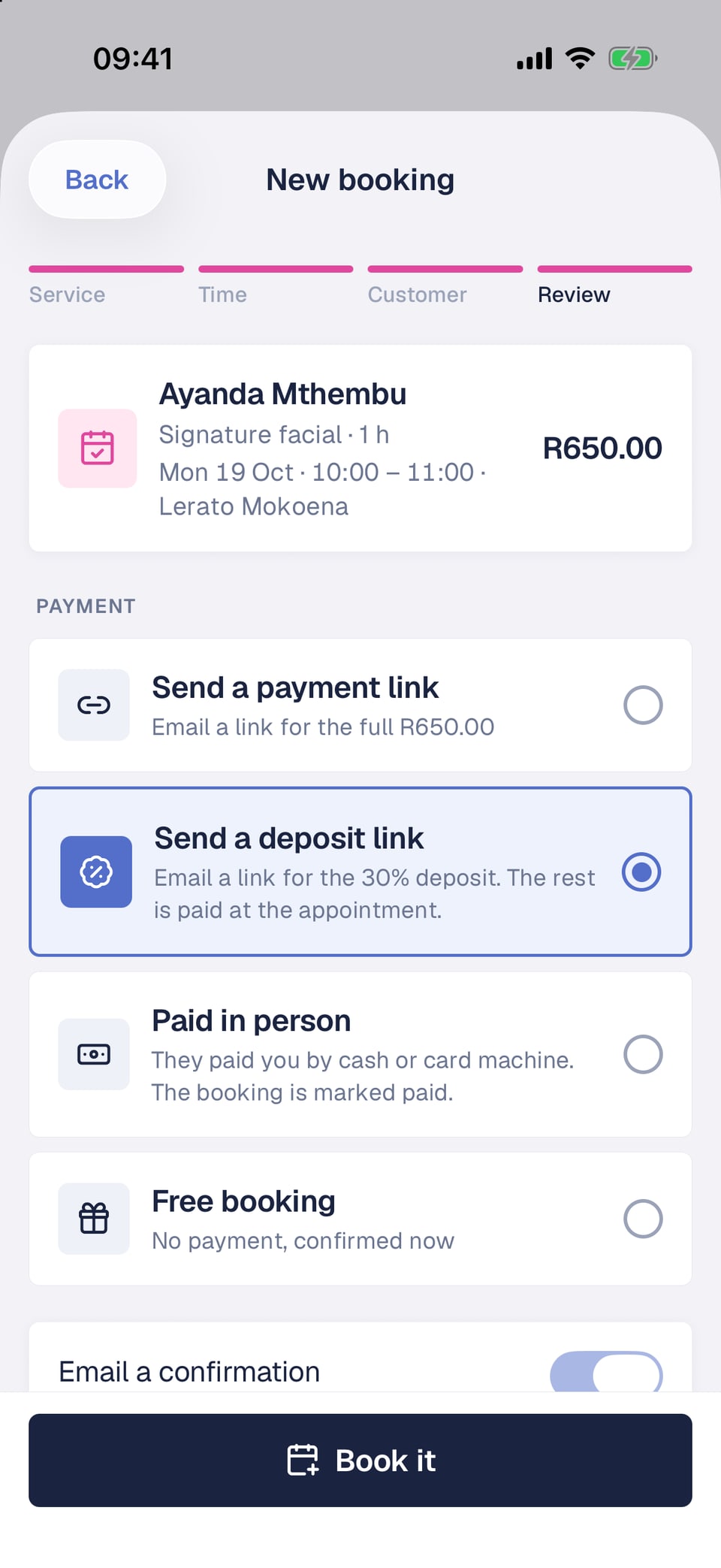
Choose how they pay
Pick one of the payment options below.
- 6
Tap Book it
The new booking opens. Email a confirmation is on unless you turn it off, and a confirmation always goes out with a payment link.
- Send a payment link: emails the customer a link for the full price.
- Send a deposit link: emails a link for the service's deposit, and the rest is paid at the appointment. You only see this for services that take a deposit.
- Paid in person: they've already paid you in cash or on your card machine, so the booking is marked paid.
- Free booking: no payment, confirmed straight away.
Waiting for a payment link
A booking sent with a payment link shows Awaiting payment, with a dashed outline on the calendar, and it's confirmed once the customer pays. A deposit link doesn't save a card, so collect the rest with a payment link, or in cash or on your card machine.
Everything about the visit
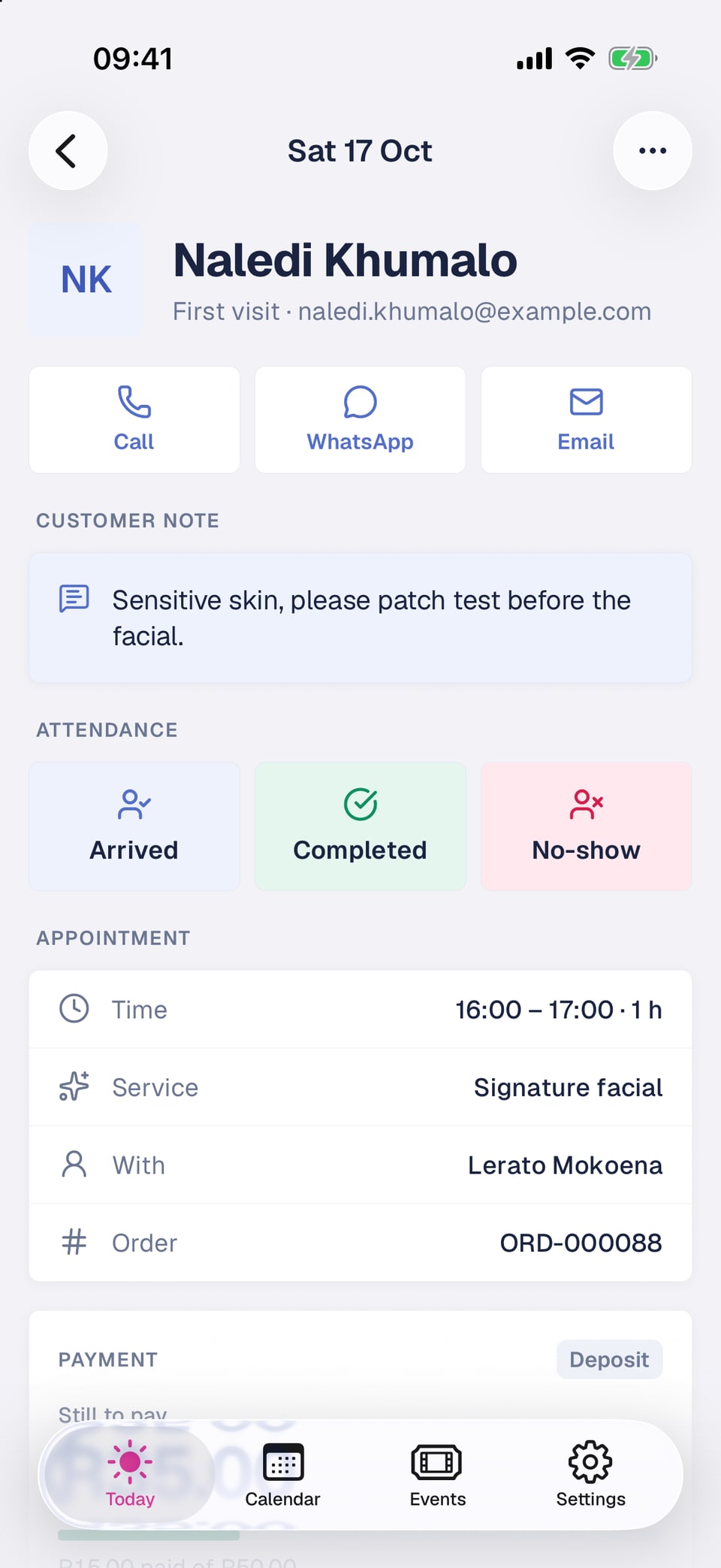
Tap an appointment on Today or Calendar to open it. You see:
- The customer's name, how many times they've visited, and Call, WhatsApp and Email buttons
- The note they left when they booked, if any
- Attendance: Arrived, Completed and No-show
- The time, service, staff member, extras and order number
- Payment: what they've paid and what's still due
- Their intake answers and signed waivers
- Their earlier visits to your store
Mark who's arrived
Tap Arrived when the customer walks in, Completed when you're done, or No-show if they don't come. Tap the selected one again to clear it. Attendance opens two hours before the appointment starts, so you can welcome early arrivals. Before then, the buttons don't show.
Move or cancel a booking
Owners and managers can tap the ⋯ button at the top of a booking for more:
- Reschedule: pick a new day and one of the free times, then tap Move booking. The customer gets an email with the new time. You can move appointments that haven't started yet.
- Resend confirmation email: sends the booking confirmation to the customer again.
- Cancel booking: confirm, and we email the customer to let them know.
Cancelling doesn't refund the customer
Any money the customer paid stays on the order. If they're owed a refund, give it from your dashboard on the web. In a group booking, rescheduling or cancelling changes only that one person's place.
Collect what's left
When a booking still has money due, its Payment section shows what is still to pay and what has been paid. Owners, managers and staff can all collect it.
Charge the saved card
When a customer pays a deposit by card, their card is usually saved for the rest. You see it on the booking, like "Visa •• 4081 saved", with the time it can be charged until: the end of the day after the appointment.
- 1
Mark them Arrived or Completed
The Charge button works once the booking is marked Arrived or Completed.
- 2
Tap Charge
The button shows the amount and the card, like "Charge R35.00 to Visa •• 4081".
- 3
Add any extras
Use + and − to add extras from the service's add-ons, or type a description and amount under Something else and tap Add item. Extras are added to the booking and the receipt once the payment goes through.
- 4
Tap Show the customer
Hand them your phone. They see your store name, each line, the total and their card.
- 5
The customer confirms
They press and hold Confirm and pay until the bar fills. Holding instead of tapping means a stray touch can't charge them.
- 6
You're paid
The booking is marked paid in full, and the customer gets their receipt by email.
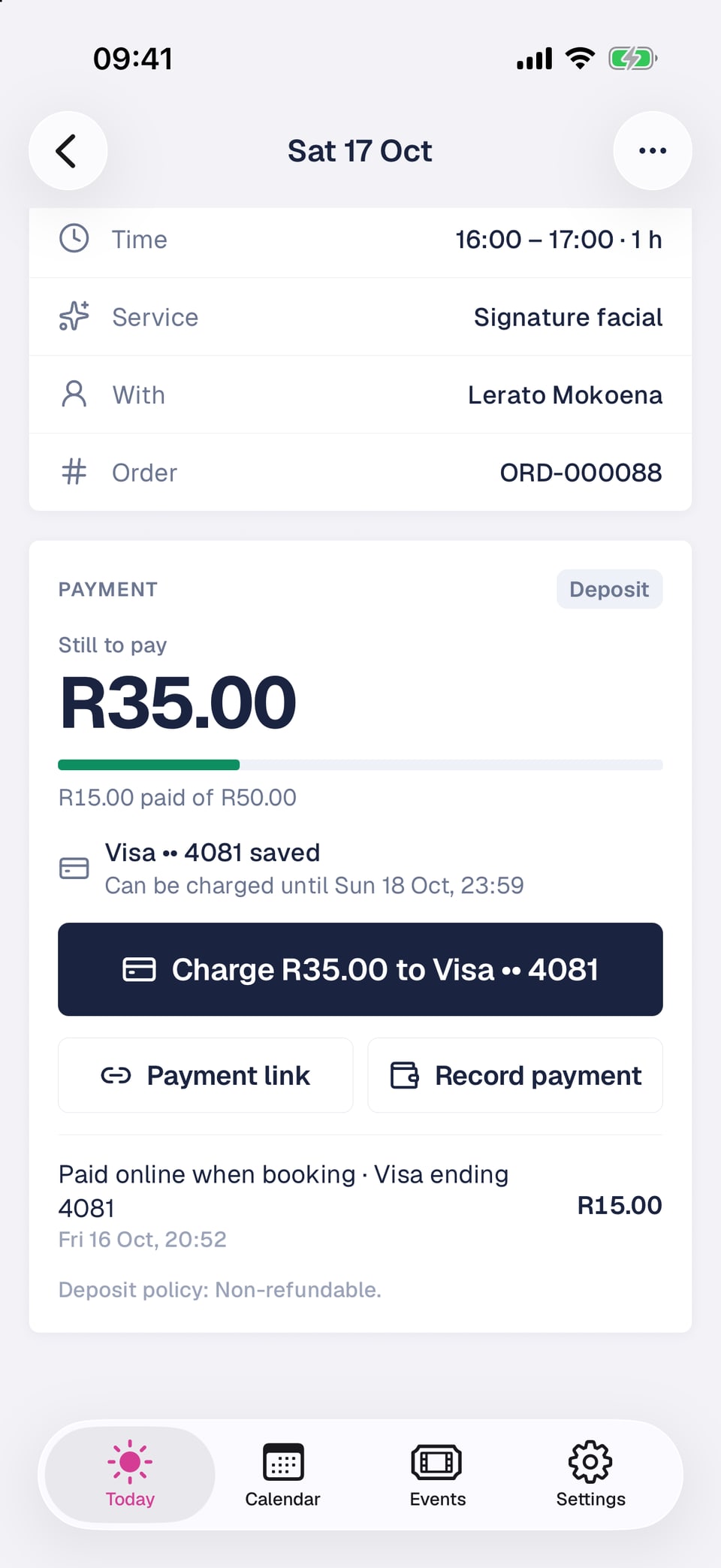
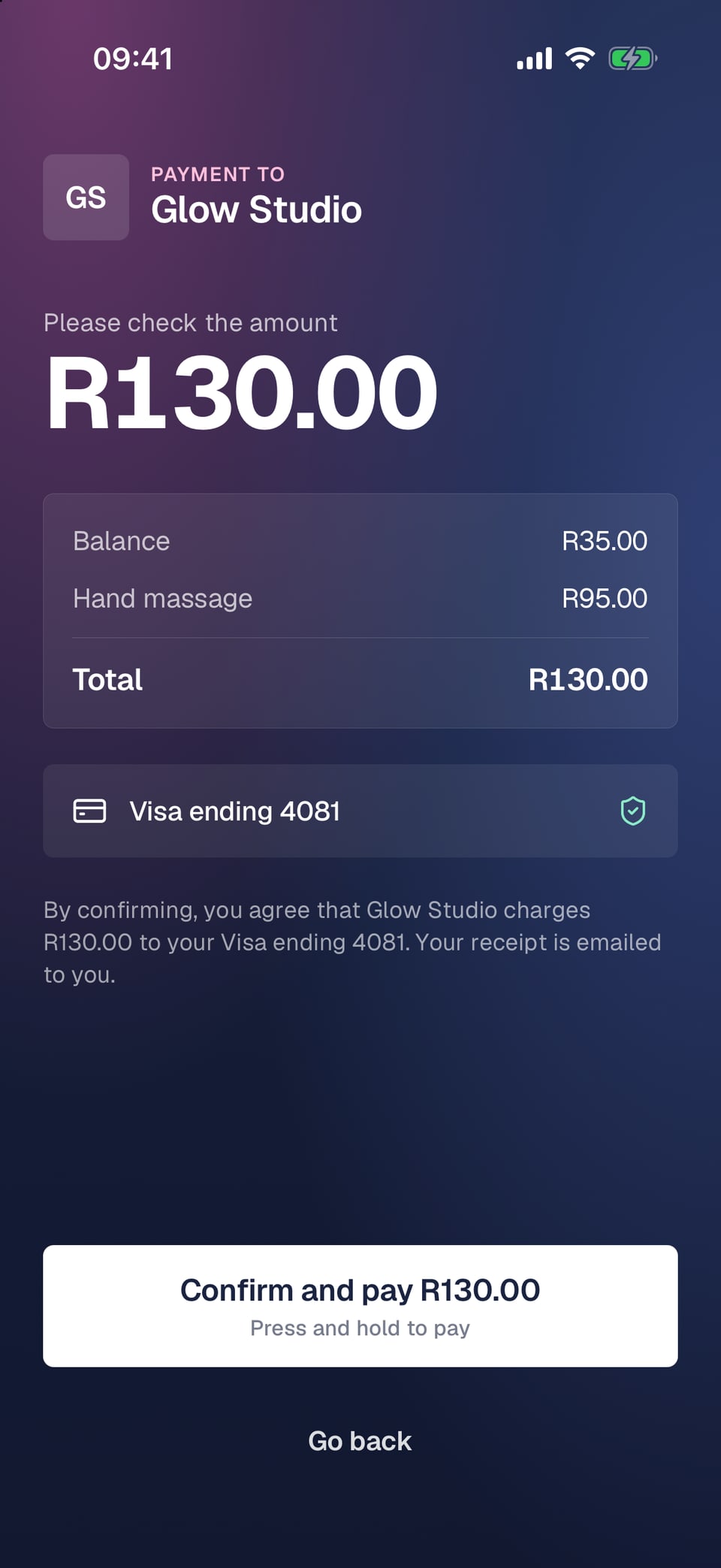
If the bank needs more time, you see Payment processing. Don't charge again: the booking updates when the bank confirms. If the card is declined, you see the bank's reason and can send a payment link or record a payment instead.
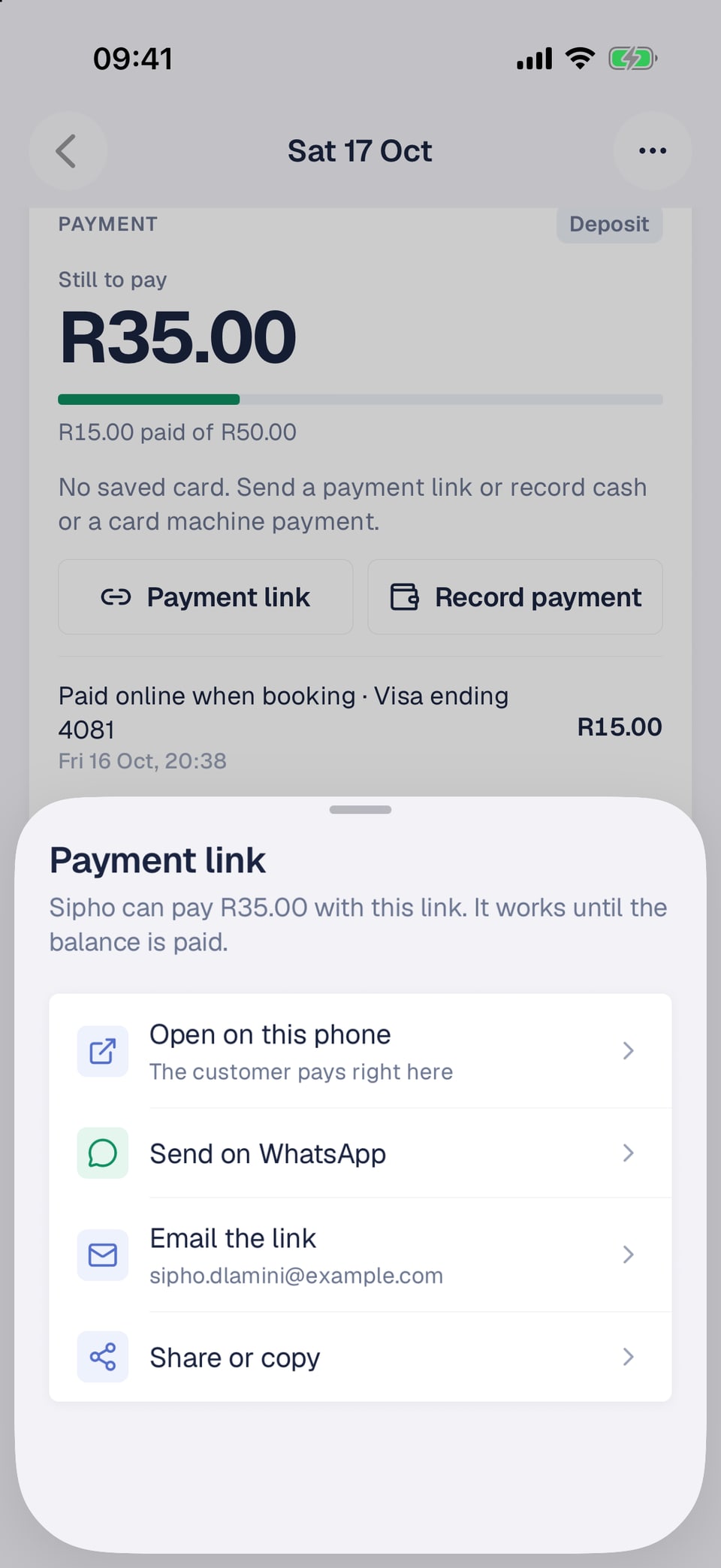
Send a payment link
Tap Payment link for a link the customer can use to pay what's left. It works until the balance is paid.
- Open on this phone: the customer pays right there on your phone
- Send on WhatsApp: opens a chat with the link ready to send, when the booking has a mobile number
- Email the link: we email it to the customer
- Share or copy: send it any other way you like
Record cash or a card machine payment
- 1
Tap Record payment
It's next to Payment link on the booking.
- 2
Choose Cash or Card machine
Card machine is for payments on your own card terminal. Add a note if you like.
- 3
Tap Record
The button shows the amount, like "Record R35.00". The whole balance is marked paid.
No Shopstar fee on money you collect yourself
Cash and card machine payments have no Shopstar fee.
No saved card?
Some customers book to pay at the appointment, pay with a card that can't be charged again, or remove their saved card. The Payment section then says there's no saved card, and you collect with a payment link or by recording cash or a card machine payment.
One payment at a time
If the customer has the payment link open and is paying, Front Desk shows a note and won't charge their card, so nobody pays twice. Give it a few minutes, then check the booking again.
Staff shares work the same way
If you pay staff a share of their bookings, payments you take in Front Desk are shared exactly as they are on the web.
Frequently asked questions
Why can't I charge the saved card?
If there's no Charge button, the booking has no saved card, so send a payment link or record the payment. If the button is greyed out, mark the customer as Arrived or Completed first. After the end of the day after the appointment, the card can't be charged any more.
Why can't I mark someone as arrived yet?
Attendance opens two hours before the appointment starts. Check the date and time on the booking.
Can staff book walk-ins?
No. Only owners and managers can book, move or cancel appointments and block time. Staff can open their appointments, mark attendance and take payments.
Can I charge a customer who didn't turn up?
No. The saved card can only be charged once the booking is marked Arrived or Completed. Mark the booking as a No-show so your records are right.
Can I give a refund in Front Desk?
No. Refunds are done from your dashboard on the web.