Each staff member adds their own bank account, so their share goes straight to them. You send one invite; they do the rest from their phone in a couple of minutes. You only ever see their bank and the last four digits of the account.
Invite a staff member
- 1
Check their email
Under Products, then Resources, click the staff member's name. Their email must be on their resource. If it isn't, add it and click Update first.
- 2
Send the invite
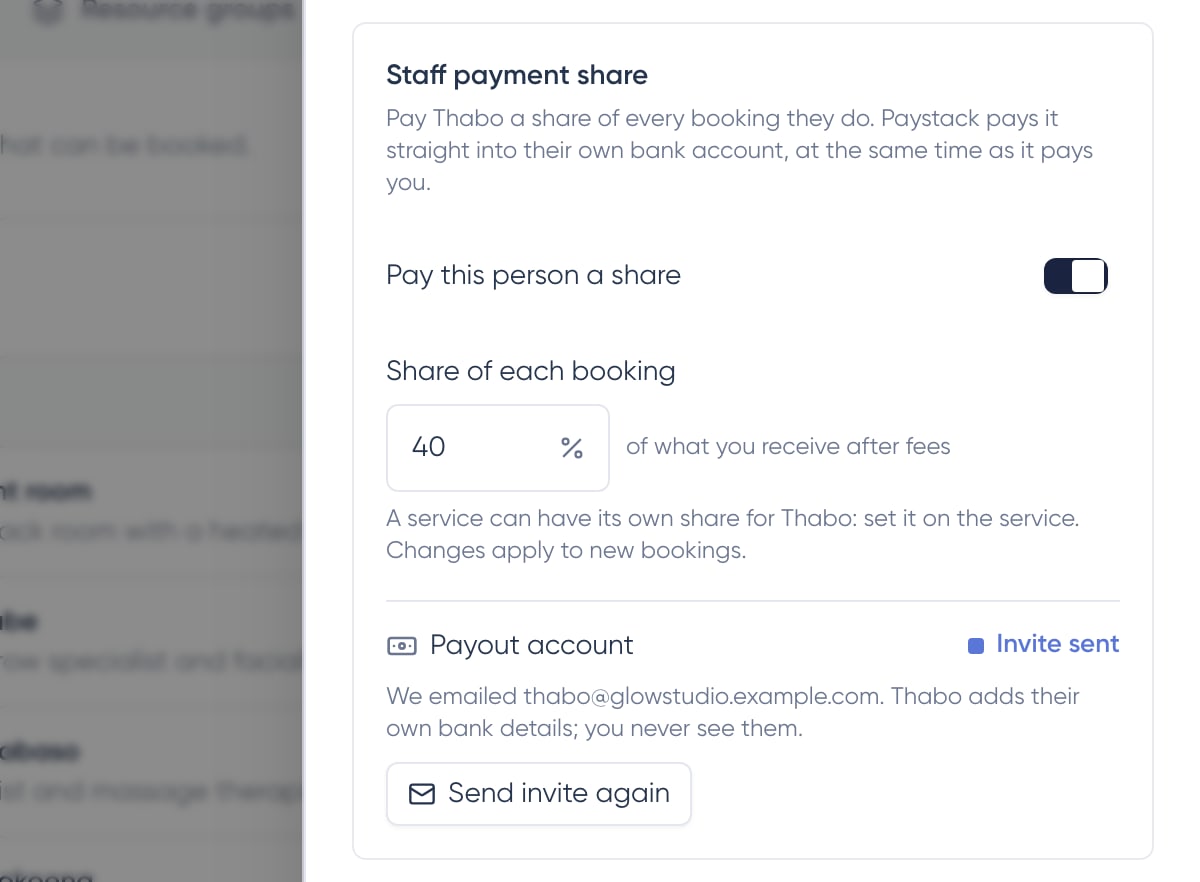
Under Payout account, click Invite (with their first name). They get one email with a link. The status changes to Invite sent.
- 3
Send it again if needed
If they lose the email, click Send invite again. The old link stops working and a new one is sent.
What your staff member does
- 1
Create their login
The link opens a short page. They create a login so they can come back later to see or change their account.
- 2
Add their bank account
They choose their bank, enter the account number and type, and their initials and surname exactly as the bank has them. The account must be in their own name.
- 3
Confirm it's theirs
They enter their South African ID or passport number. It goes to their bank to confirm the account is theirs and isn't kept.

What the statuses mean
- Not set up: you haven't sent an invite yet.
- Invite sent: waiting for them to add their bank account.
- Checking details: their bank is confirming the account is in their name. This usually takes a few minutes and sometimes up to a day.
- Active: shares are paid into their account automatically.
- Needs attention: the bank couldn't confirm the account. They get a plain reason and can try again from the same link.
Until the account is active
Shares for bookings paid before their account is active are recorded as owed by you. Pay them yourself and mark them settled in Staff earnings.
When a staff member changes their bank account
Staff can change their account any time: they sign in, click their name at the bottom of the menu, then Your payouts. Every payout email also has a See your payouts button. To protect them and you, a new account doesn't take over straight away:
- Their bank first confirms the new account is in their name.
- Once confirmed, you and the staff member each get an email. The new account takes over 48 hours later.
- Until then, their share keeps going to their current account.
- If the new account can't be confirmed, nothing changes and their current account keeps getting paid.
Didn't expect a change?
Check with your staff member straight away. The email has a button to their page in your dashboard. Click Stop this change before it takes over. Their current account keeps getting paid, and they get an email saying the change was stopped.
Frequently asked questions
Can I enter the bank details for my staff member?
No. Staff add their own account so it's in their name and only they can change it. You see the bank and last four digits.
Does the staff member get access to my dashboard?
Their login has the Staff role, the same as other staff on your team. It doesn't give them owner or manager access, and you can remove it from Team like any other team member.
Can I invite someone by phone number?
Not yet. Invites are sent by email for now.