Shopstar Go Front Desk is an app for the people at your counter, your chairs and your door. Open it on an iPhone or iPad to see today's appointments, book walk-ins, take payments and check guests in to events, without going to a computer. Everyone signs in with their own login and sees what their role allows.
Front Desk is its own app
It's separate from the Shopstar Go app you may already use to run your store, and it's made for the day-to-day at your venue. Store settings, your team and billing stay on Shopstar on the web. Front Desk works on both plans.
What you need before you start
- An iPhone or iPad with Wi-Fi or mobile data
- A login for your store. Owners and managers can use the login they already have.
- For staff, a login of their own that's linked to their staff profile. You set this up on the web (see the guide to giving staff Front Desk access).
- Booking services or ticketed events set up on the web
Who can use it and what they see
- Owners and managers: everything. Every staff member's appointments, new bookings, moving and cancelling, blocking time, taking payments, and every event.
- Staff: their own appointments, or everyone's if you turn on "Staff can see everyone's appointments". They can mark attendance, take payments and check guests in to events. They can't book, move or cancel appointments, or block time.
- Check-in only: the Events tab, to check guests in at the door.
Front Desk follows each person's role on your team and checks it every time they use the app. If you change someone's role or remove them from your team, the app changes straight away.
Get the app and sign in
- 1
Download Front Desk
On your iPhone or iPad, open the App Store and search for Shopstar Go Front Desk. Install it like any other app.
- 2
Enter your email
Open the app, type the email you sign in to Shopstar with, and tap Email me a code.
- 3
Enter the 6-digit code
Type in the code from your email. You're signed in as soon as the last digit is in. If your account has a verified phone number, the code goes to your phone instead, the same as when you sign in on the web.
- 4
Finish two-step verification, if you use it
If you've turned on two-step verification, enter the code from your authenticator app or one of your backup codes.
- 5
Turn on notifications
Front Desk asks once whether it can send you notifications. Tap Turn on to hear about new bookings, cancellations, moved appointments and payments.
Sign in with Apple
When you see Sign in with Apple under the email field, you can use it instead of a code. It works when your Apple ID uses the same email address as your Shopstar login.
Choose your store
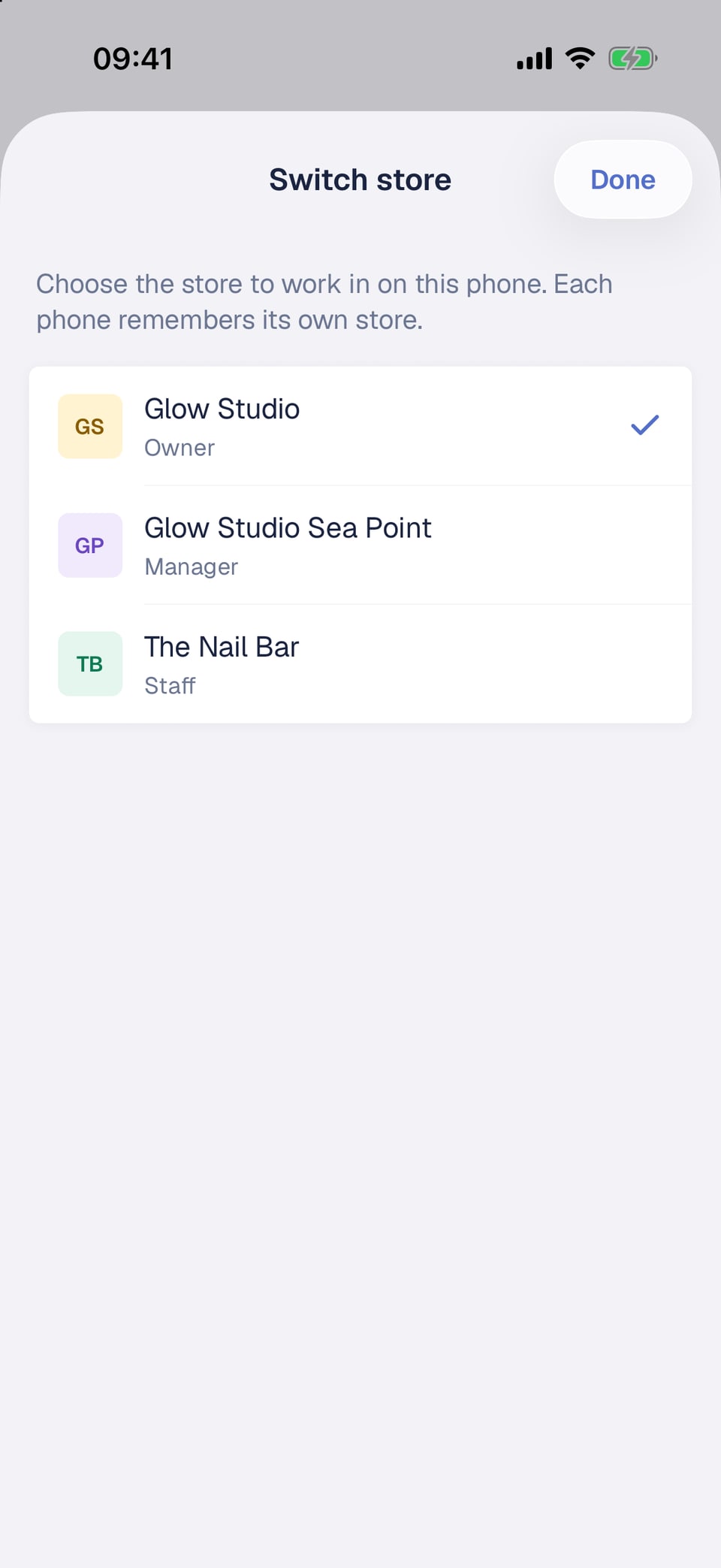
If you work in more than one Shopstar store, tap the store name at the top of Today or Events, or tap your store in Settings, then pick the store to work in. Each phone remembers its own store, so the iPad on your counter can stay on one store while your own phone is on another. Your web dashboard doesn't change.
Today
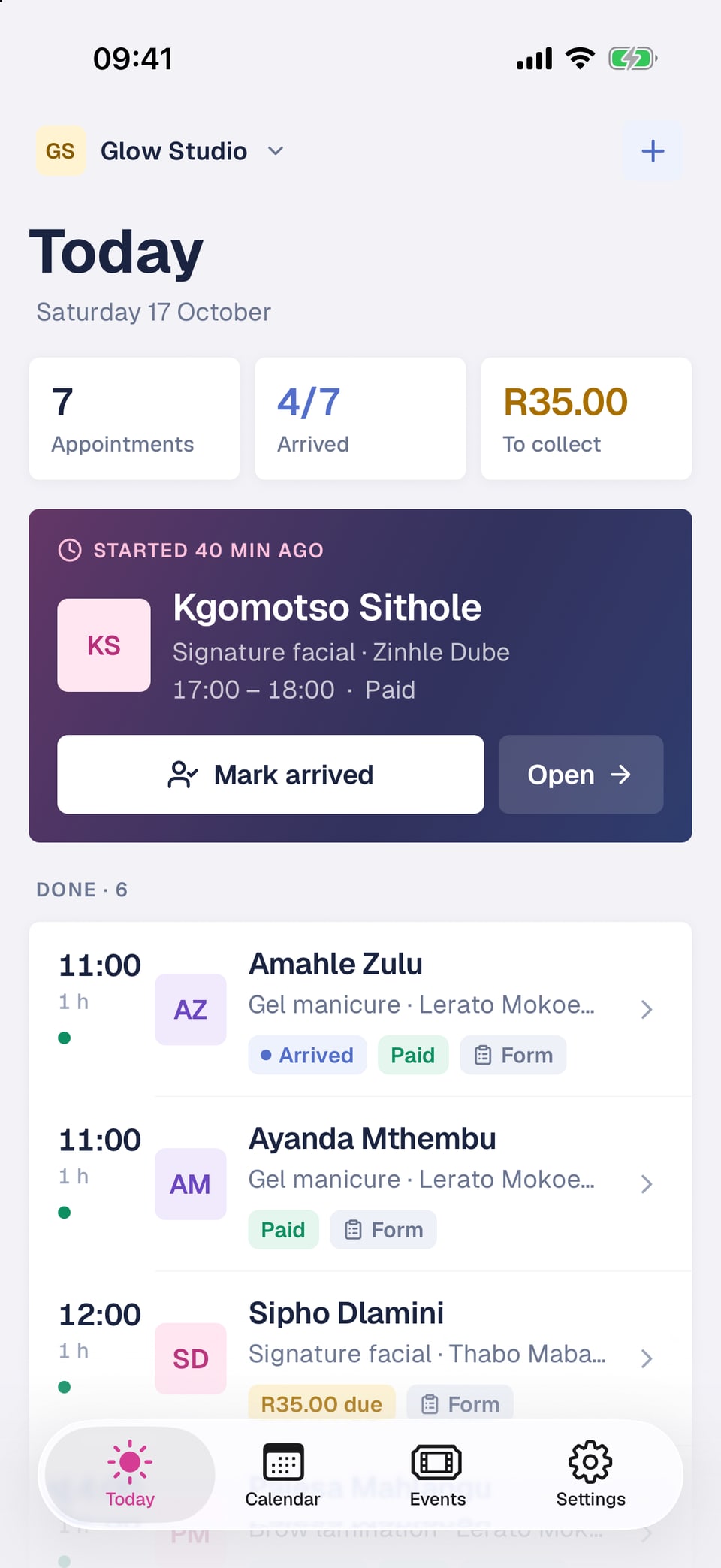
Today opens first. At the top are three numbers: your appointments, how many people have arrived, and the money still to collect. The next appointment has its own card with Mark arrived and Open. The rest of the day is grouped into In progress, Coming up, Done and Cancelled.
- When someone walks in, tap Mark arrived on the card, or the person-with-a-tick button next to their name under Coming up. Both show from two hours before the appointment.
- Tap any appointment to open it, with the customer's details, notes, forms and payment.
- Pull down to refresh.
- If you're linked to a staff profile and can see everyone's appointments, switch between Everyone and My appointments.
Calendar
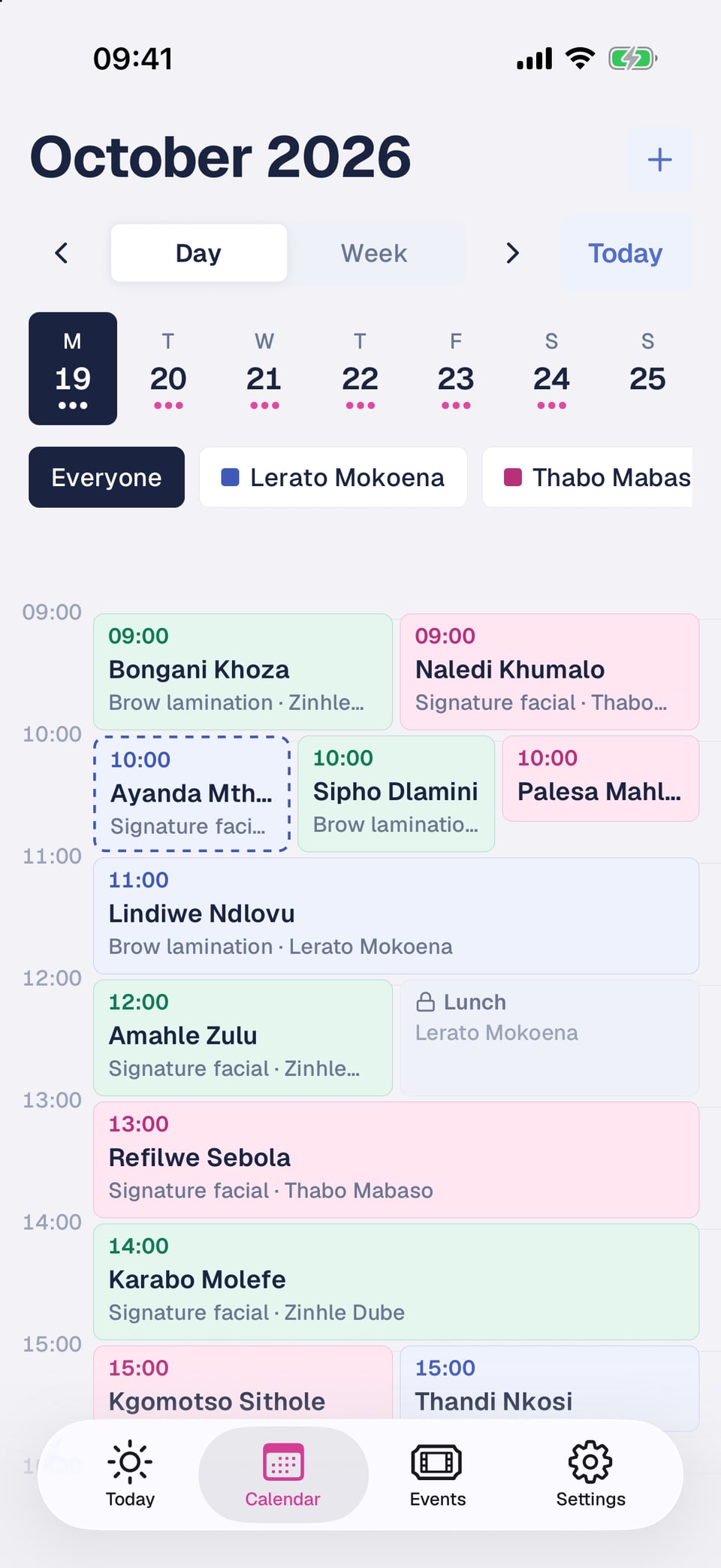
The Calendar tab shows one day as a timeline or the whole week as a list. Switch with Day and Week, tap a date to jump to it, use the arrows to move a week at a time, and tap Today to come back.
- Each staff member has their own colour. Tap a name under the dates to see only that person's appointments, Everyone for the whole team, or Mine for your own.
- A booking with a dashed outline is waiting for the customer to pay its payment link.
- Blocked time shows a lock and its reason.
- Front Desk remembers the view and the staff filter you picked.
Block out time
Owners and managers can keep time free for breaks, training or a day off, so customers can't book it.
- 1
Open the day
In Calendar, go to the day you want to block.
- 2
Tap +, then Block time
The + button is at the top of the calendar.
- 3
Choose the service and who
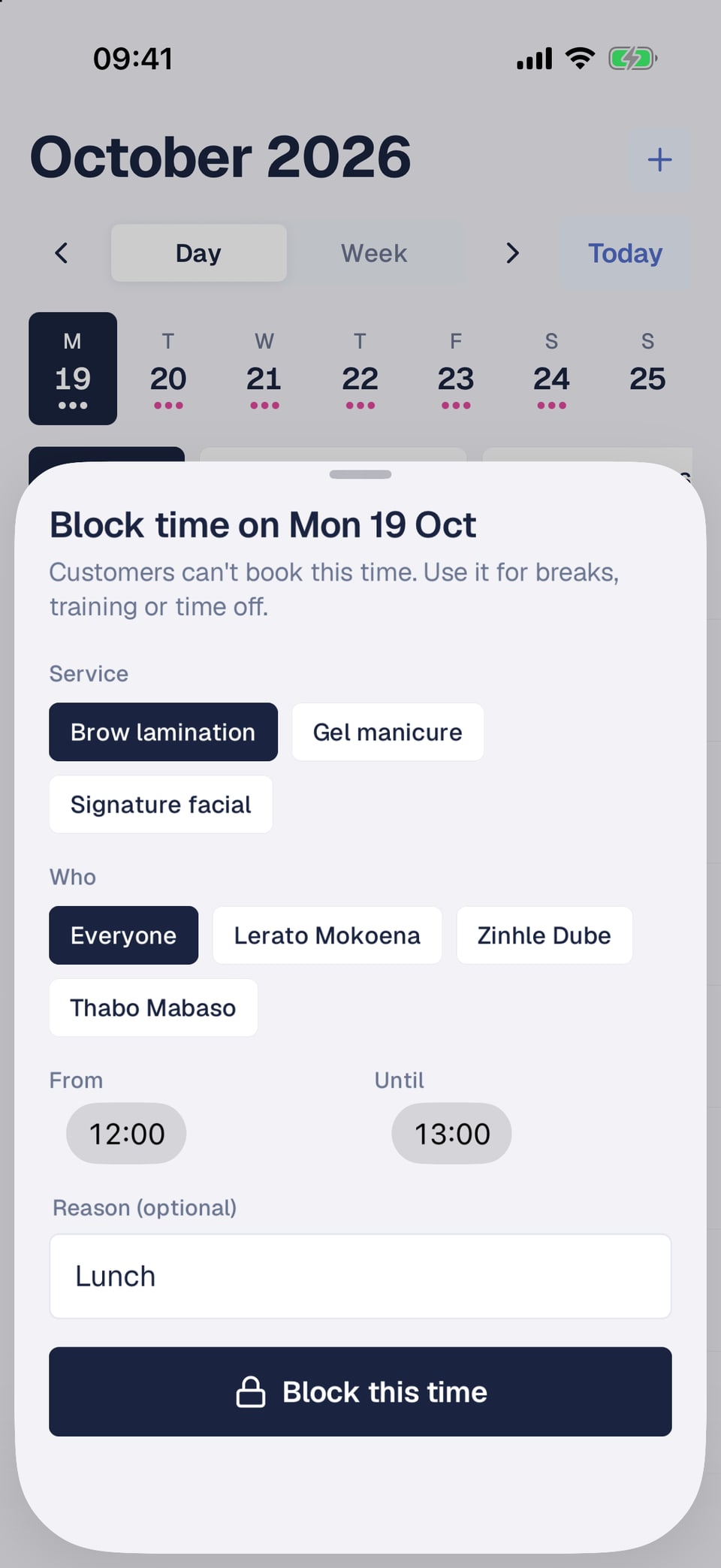
If you have more than one service, pick the one the block is for. Under Who, choose Everyone or one staff member.
- 4
Set the time and save
Set From and Until, add a reason like "Lunch" if you want, and tap Block this time.
To open the time up again, tap the blocked time on the calendar, then Remove blocked time.
Notifications
Front Desk tells you about new bookings, cancellations, moved appointments and payments for the appointments you can see. You don't get one for a change you made yourself. Tap a notification to open the booking. If it's for another of your stores, the app switches store first.
To turn notifications on or off, open Settings and tap Notifications. If you said no earlier, this opens your phone's settings so you can turn them on.
Signed-in phones and signing out
Front Desk keeps you signed in while you use it, so your team doesn't need a new code every morning. In Settings, Signed-in phones (Signed-in devices on an iPad) lists every phone and iPad signed in with your login. Tap Sign out next to one you've lost or no longer use, and it needs a new code to get back in. To sign out of the phone in your hand, scroll to the bottom of Settings and tap Sign out.
Someone left your team?
Remove them from your team on the web. Front Desk stops showing them your store straight away, even if their phone is still signed in.
Frequently asked questions
Which plans include Front Desk?
Both. Front Desk works on Pay Per Sale and Subscription.
I didn't get a code. What now?
Check your spam folder and make sure you typed the email you use for Shopstar. After a minute, you can tap Send a new code.
Why does a staff member see "Not linked yet"?
Their login isn't linked to their staff profile, so Front Desk doesn't know which appointments are theirs. Link them on the web (see the guide to giving staff Front Desk access).
Which time zone does Front Desk use?
Your store's time zone, wherever the phone is.
Does Front Desk work without the internet?
No. Front Desk needs Wi-Fi or mobile data to load your bookings, take payments and check guests in.